
You open Gemini, type a quick description, and watch a beautiful image appear in seconds. It looks professional. The lighting works. The composition makes sense. You just created something that would’ve required expensive equipment and years of photography training.
This is what Gemini AI delivers right now. Google’s image generation technology has reached a point where anyone can create stunning photos without cameras, studios, or technical skills. The catch? You need to know how to communicate your vision effectively.
Most people struggle because they treat Gemini like a search engine. They type basic descriptions and wonder why results look generic. Creating amazing photos requires understanding how Gemini interprets language, what features to activate, and which techniques produce consistent quality. This guide shows you exactly how to do that, step by step, from your very first image to advanced professional techniques.
What Is Gemini AI and How Does It Create Photos?
Gemini AI is Google’s advanced artificial intelligence system that generates original images from text descriptions, with two powerful models called Nano Banana and Nano Banana Pro that convert your words into high-quality photos in seconds.
When you describe an image to Gemini, the AI analyzes your prompt and creates a completely new photo based on patterns learned from millions of images. This isn’t searching databases or modifying existing photos. Gemini generates entirely original images that didn’t exist before you typed your description.
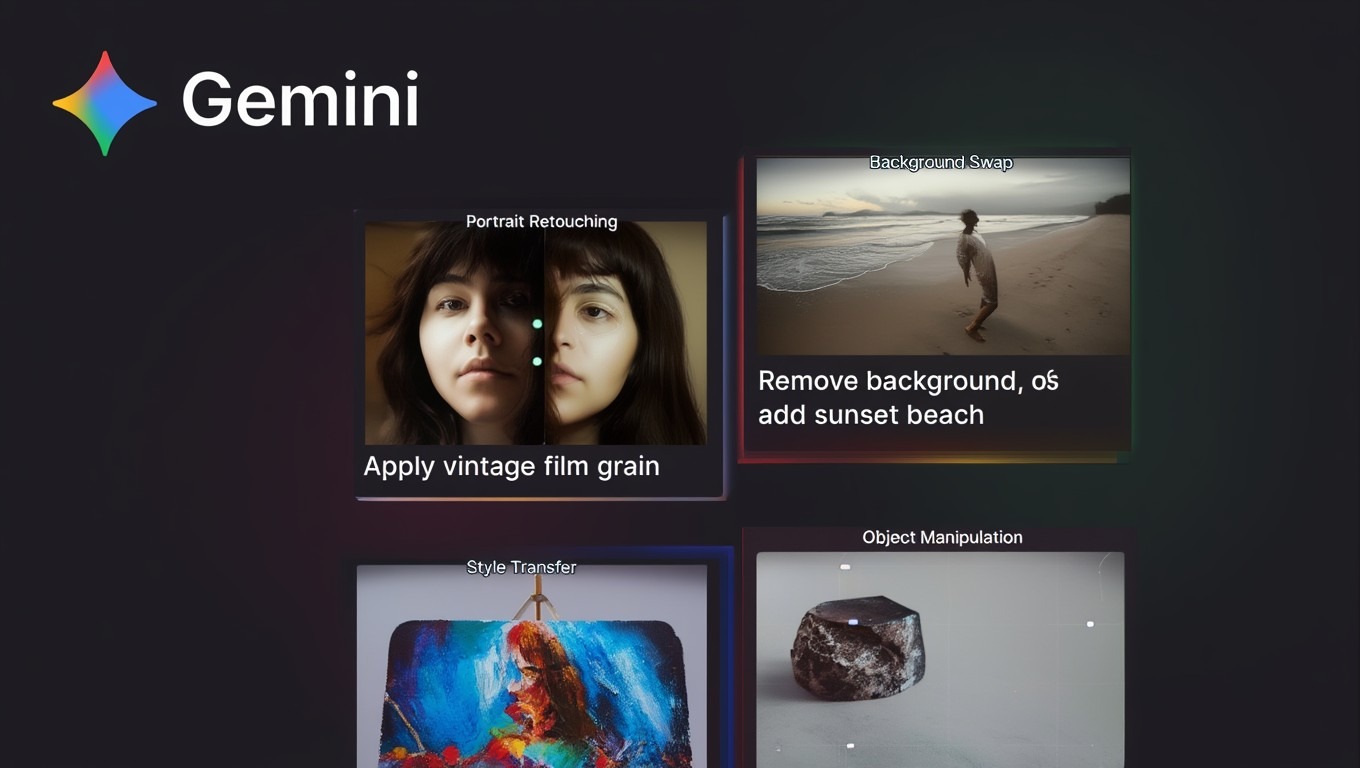
The technology uses two main models. Nano Banana works fast for everyday casual image creation. It handles quick generations, personalized photos, and character consistency. Nano Banana Pro offers advanced capabilities including higher resolution output, improved text rendering in images, precise lighting control, and the ability to blend multiple photos seamlessly.
Here’s what makes this technology special. Traditional AI image generators require separate tools for editing, upscaling, and combining images. Gemini handles everything conversationally. You generate an image, then tell Gemini to modify specific parts, and it understands context from your conversation. This makes creating and refining images feel natural rather than technical.
In practice, this means you can start with a basic concept and evolve it through conversation. Generate a photo, ask Gemini to change the background, adjust the lighting, add elements, or completely transform the style. Each change builds on previous work without starting over.
Why Should You Use Gemini AI for Creating Photos?
Gemini AI eliminates barriers to professional-quality imagery by providing free access to advanced photo generation, intuitive conversational editing, consistent character creation across multiple images, and seamless integration with Google’s ecosystem.
The biggest advantage is accessibility. You don’t need expensive cameras, lighting equipment, or photography skills. You don’t need to hire photographers or purchase stock photos. Gemini generates custom images matched exactly to your needs, for free in most cases.
Speed matters tremendously for content creators and businesses. Traditional photography requires planning shoots, arranging locations, coordinating schedules, shooting, and editing. That process takes days or weeks. With Gemini, you describe what you need and get results in seconds. Need 20 product mockups in different settings? Done in minutes.

Another big plus is the conversational refinement capability. When working with human photographers, requesting changes often means reshooting or complex editing. With Gemini, you simply describe the adjustment you want. “Make the lighting warmer” or “move the subject to the left” works instantly without starting over.
Character consistency offers unique value. If you’re creating content featuring specific people or characters, Gemini can maintain their appearance across multiple images in different poses, locations, and scenarios. This consistency is crucial for storytelling, branding, and any project requiring recognizable faces.
What Do You Need to Start Creating Photos with Gemini AI?
You need a Google account, internet access, and a web browser to access gemini.google.com, where you can immediately start generating images for free using either Nano Banana or Nano Banana Pro models.
The technical requirements are minimal. Any modern computer, tablet, or smartphone works perfectly. You don’t need powerful hardware because processing happens on Google’s servers, not your device. A stable internet connection matters more than device specifications.
Account requirements are straightforward. You must be at least 13 years old with a personal Google account, or have a work/school account with appropriate permissions. Users under 18 cannot access Nano Banana Pro features, but Nano Banana remains available for quick generations.
It’s important to note that Gemini 3 Pro / Gemini 3.1 Pro quotas apply to Nano Banana Pro generations. If you generate many images quickly, you might hit daily limits. When that happens, switch to Nano Banana (the “Fast” option) to continue creating images until your quota resets.
No software installation is required. Everything works through your web browser at gemini.google.com. This makes Gemini accessible from any device without downloads, updates, or storage concerns. You can start creating images immediately.
How Do You Generate Your First Photo with Gemini AI?
Navigate to gemini.google.com, click “Create image,” select your preferred model (Fast for Nano Banana or Thinking/Pro for Nano Banana Pro), enter a descriptive prompt, and click submit to generate your first image in approximately 30-60 seconds.

Let’s walk through this step-by-step. First, open your web browser and go to gemini.google.com. Sign in with your Google account if you haven’t already. You’ll see the main Gemini interface with a text box at the bottom.
Next, click the “Create image” button. This activates image generation mode. You’ll see model options in the dropdown menu. Select “Fast” for quick generations with Nano Banana, or “Thinking” or “Pro” for advanced features with Nano Banana Pro.
Now comes the important part—writing your prompt. Start with an action word like “generate,” “create,” or “draw.” Then describe what you want in detail. For your first attempt, try something simple:
“Generate a photorealistic image of a golden retriever puppy sitting in a sunny garden with colorful flowers in the background.”
Click submit or press enter. Gemini will process your request. This typically takes 30 to 60 seconds depending on complexity and server load. When complete, your image appears in the conversation.
Review your result. Does it match what you envisioned? If not, you can refine it by adding follow-up instructions. “Make the lighting softer” or “Add more flowers in the foreground” works as a second prompt, and Gemini will modify the existing image.
What Are the Six Essential Elements of Great Photo Prompts?
Effective Gemini prompts include six key components: specific subject description, composition framing, action or pose details, location setting, visual style preference, and technical specifications that together guide the AI toward your exact vision.
Think of prompts as recipes. Each ingredient contributes to the final result. Missing elements leave gaps that Gemini fills randomly, often producing unexpected results. Including all six components gives you maximum control.

Subject Description
This defines who or what appears in your photo. Be specific rather than generic. Instead of “a woman,” write “a woman in her thirties with long dark hair wearing a blue dress.” Instead of “a car,” specify “a red vintage 1960s convertible car.” Details matter because they eliminate ambiguity.
Composition and Framing
This tells Gemini how to frame your shot. Use photography terms like “close-up portrait,” “wide shot,” “bird’s eye view,” or “low angle shot.” These terms communicate perspective and how much of the subject fills the frame. Without this, Gemini chooses randomly.
Action or Pose
What’s happening in your photo? Is your subject “standing confidently,” “running through a field,” “sitting and reading a book,” or “laughing with friends”? Action creates energy and tells a story. Static subjects need pose descriptions like “relaxed posture” or “formal stance.”
Location and Setting
Where does your photo take place? Describe the environment: “in a modern office with large windows,” “on a tropical beach at sunset,” “in a cozy cafe with warm lighting,” or “against a plain white studio background.” Location provides context and atmosphere.
Visual Style
How should your photo look? Specify styles like “photorealistic,” “watercolor painting,” “pencil sketch,” “3D rendered,” “vintage film photography,” or “modern minimalist.” Style dramatically changes the final aesthetic. Without this, Gemini defaults to a general photorealistic approach.
Technical Specifications
Add photography details for professional quality. Mention lighting: “soft natural window light” or “dramatic side lighting.” Specify camera details: “shot with 85mm lens” or “shallow depth of field with blurred background.” These technical elements separate amateur from professional-looking results.
How Do You Write Prompts That Generate Professional-Quality Photos?
Professional prompts combine precise visual language, specific technical details, clear constraints, and iterative refinement through conversational follow-ups that progressively improve results toward your exact creative vision.
The difference between okay photos and stunning ones often comes down to prompt specificity. Generic descriptions produce generic results. Detailed prompts with clear visual direction generate professional quality.
Start your prompts with clear action verbs. “Generate,” “create,” “photograph,” or “capture” work well. This immediately signals your intent to Gemini. Then build your description using the six essential elements covered above.

Here’s an example of a professional-quality prompt:
“Generate a photorealistic portrait of a professional businessman in her forties with short brown hair and confident expression. She wears a navy blue blazer and white blouse. Shot from shoulders up with clean even lighting against a soft grey gradient background. Use 85mm portrait lens with shallow depth of field. Professional corporate headshot style.”
Notice how this prompt includes every element. Subject details (age, hair, expression, clothing), composition (shoulders up), lighting (clean and even), background (soft grey gradient), technical specs (85mm lens, shallow depth), and style (professional corporate headshot).
In contrast, a weak prompt would say: “Create a photo of a businesswoman.” This leaves too many decisions to Gemini, resulting in unpredictable output.
Another key strategy is using reference styles. Mention photography styles, art movements, or even decade-specific aesthetics. “1970s vintage photography style,” “film noir lighting,” “magazine editorial quality,” or “Instagram aesthetic” give Gemini rich context for visual decisions.
Don’t forget constraints. If certain elements must stay specific, say so explicitly. “Maintain natural skin texture,” “keep colors realistic without oversaturation,” or “ensure text is readable” prevent common AI image problems.
How Can You Edit and Improve Photos After Generation?
Gemini enables conversational editing where you describe desired changes in plain language, and the AI modifies specific elements while preserving the rest of your image, allowing iterative refinement without starting over.
This is where Gemini truly shines compared to other AI tools. Once you generate an image, you don’t need separate editing software. Simply describe changes conversationally, and Gemini updates your photo.
Let’s say you generated a portrait but the background is too busy. Just type: “Remove the distracting background and replace it with a solid neutral color.” Gemini will isolate your subject and change only the background, leaving everything else intact.

Want to adjust specific elements? Be direct and specific:
- “Change the man’s shirt color from red to blue.”
- “Add a coffee cup on the table in front of the subject”
- “Remove the person in the background”
- ”Remove stuff like a cup.”
- “Make the lighting warmer and softer”
- “Increase brightness by about 15%”
- ‘‘Change background (studio, café, school, etc.)”
Gemini handles these precision edits without requiring you to use masks, layers, or complex editing tools. The AI understands what you mean and applies changes appropriately.
For best results with editing, use the same conversation thread. Gemini remembers context from previous prompts. If you generated an image and want modifications, continue the conversation rather than starting a new one. This maintains consistency and allows Gemini to reference the original image.
You can also blend multiple images together. Upload two or three photos and ask Gemini to combine elements from each. “Take the subject from the first image and place them in the environment from the second image” creates composite photos that would require advanced Photoshop skills manually.
What Are the Best Practices for Different Types of Photos?
Different photo categories require specific prompt strategies: portraits need detailed facial and expression descriptions, landscapes benefit from atmospheric and lighting detail, product photos require clean backgrounds and accurate colors, while creative concepts need style references and mood descriptions.
Each type of photo has unique requirements. Understanding these helps you write better prompts matched to your goals. Let’s explore the most common categories.
Portrait Photography
Portraits focus on people, so facial details matter most. Describe age range, ethnicity, hair color and style, facial features, expression, and eye direction. Include clothing descriptions and accessories. Specify lighting quality—soft and flattering for beauty shots, or dramatic side lighting for editorial looks.
Example: “Generate a photorealistic portrait of a smiling woman in her late twenties with long curly brown hair and warm brown eyes. She wears a white turtleneck sweater. Soft window light from the left creates gentle shadows. Shot with 85mm lens, shallow depth of field, grey background slightly blurred.”
Product Photography
Products need clean presentation with accurate colors and clear details. Specify the product precisely, its position, background type (plain color or environmental), and lighting that shows texture and quality. Mention any specific angles or features to highlight.
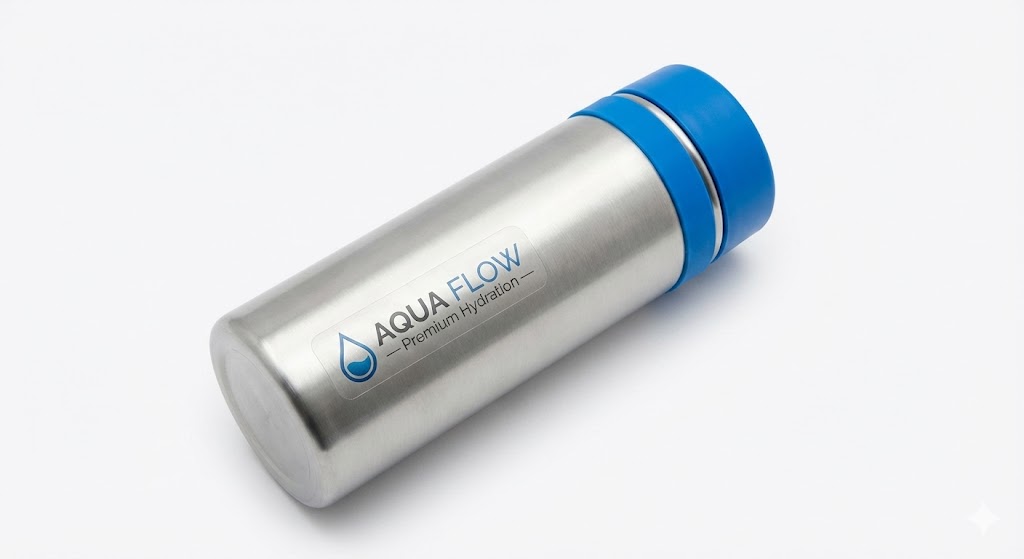
Example: “Create a product photo of a stainless steel water bottle with blue lid on a clean white background. The bottle is positioned slightly at an angle to show both front label and side profile. Bright even studio lighting eliminates shadows. Professional e-commerce photography style with sharp focus throughout.”
Landscape Photography
Landscapes require atmospheric descriptions. Detail the terrain, time of day, weather conditions, lighting quality, and mood. Mention foreground, middle ground, and background elements to create depth. Include color palette preferences.
Example: “Generate a photorealistic landscape of rolling green hills with scattered wildflowers at golden hour. Warm sunlight streams from low on the horizon creating long shadows. A winding dirt path leads through the foreground into the distance. Soft clouds in a blue sky. Rich saturated colors with warm tones. Shot with wide-angle lens showing expansive view.”
Food Photography
Food photos need to look appetizing and fresh. Describe the dish in detail, its plating, the plate or surface it sits on, and any surrounding elements like ingredients or utensils. Lighting is crucial—specify whether you want bright fresh lighting or moody dramatic tones.
Example: “Create a mouthwatering overhead photo of a gourmet burger on a wooden cutting board. The burger has a sesame seed bun, melted cheese, fresh lettuce, tomatoes, and caramelized onions. French fries are scattered around it. Natural daylight from the side creates appetizing highlights and textures. Restaurant food photography style.”
Creative and Artistic Photos
Creative images benefit from style references and mood descriptions. Mention art movements, famous photographers, specific techniques, or visual effects you want. Don’t be afraid to get experimental with unusual combinations.
Example: “Generate an artistic photo in the style of 1920s Art Deco poster design. A woman in vintage 1920s flapper dress and headband poses dramatically against geometric patterns. Bold colors—deep reds, golds, and blacks. High contrast with stylized shadows. Vintage photography aesthetic meets modern poster art.”
How Do You Create Consistent Characters Across Multiple Photos?
Establish detailed character descriptions in your first prompt, then reference “the same character from the previous image” in follow-up prompts, allowing Gemini to maintain facial features, styling, and distinctive characteristics across different poses and settings.
Character consistency solves a huge problem for content creators, storytellers, and anyone building visual narratives. You want the same person recognizable across multiple images in different scenarios.

Here’s how the process works. Start by creating your initial character with extensive detail. The more specific you are in the first prompt, the better Gemini can replicate the character later.
First prompt example:
“Generate a photorealistic portrait of a young man in his early twenties. He has short curly black hair, warm brown skin, dark brown eyes, and a friendly smile. He has a small scar above his left eyebrow and wears small silver hoop earrings. Casual style wearing a grey hoodie. Natural confident expression.”
Once generated, use follow-up prompts that reference this character:
“Now show the same character from the previous image playing basketball outdoors on a sunny day. He wears athletic gear—basketball jersey and shorts. Action shot capturing him mid-jump shooting the ball. Outdoor court with blue sky background.”
Then continue building scenarios:
“Show the same character sitting in a modern cafe working on a laptop. He wears a denim jacket over a white t-shirt. Warm cozy cafe lighting. He looks focused on the screen with a coffee cup nearby.”
Gemini maintains the key identifying features—facial structure, hair, skin tone, distinctive characteristics like the eyebrow scar and earrings. While minor variations may appear, the character remains recognizable as the same person.
For best consistency results, work within the same conversation thread. Gemini’s contextual memory helps it remember character details. If you start a new conversation, you’ll need to redescribe the character or upload a previous image as reference.
What Common Mistakes Should You Avoid When Using Gemini AI?
The most frequent mistakes include writing vague prompts without specific details, trying to accomplish too many changes in one prompt, ignoring lighting descriptions, forgetting style specifications, and not iterating through conversational refinement when first results disappoint.
Understanding what doesn’t work saves you time and frustration. Let’s break down the biggest pitfalls and how to avoid them.
Mistake 1: Vague Generic Descriptions
Writing “generate a nice photo of a woman” gives Gemini almost nothing to work with. Nice means different things to everyone. What age? What appearance? What setting? What style? The AI has to guess, and results will be random.
Fix this by adding specifics. Age range, physical descriptions, clothing, location, lighting, and style. Every added detail increases your control over the final result.
Mistake 2: Overloading Single Prompts
Trying to generate a complex scene with multiple characters, intricate backgrounds, specific actions, and precise styling all in one prompt often produces confused results. The AI struggles to balance all requirements simultaneously.
Better approach: build complexity progressively. Start with the main subject, generate that, then add elements through follow-up prompts. “Add a second person standing next to them” or “Change the background to a beach setting” works better than requesting everything upfront.
Mistake 3: Ignoring Lighting Specifications
Lighting transforms photos from flat to professional. Yet many people never mention lighting in prompts, leaving this crucial element to chance. Gemini might choose harsh midday sun when you wanted soft golden hour warmth.
Always specify lighting quality, direction, and mood. “Soft diffused natural light,” “dramatic side lighting creating shadows,” or “bright even studio lighting” give Gemini clear direction.
Mistake 4: No Style Reference
Without style guidance, Gemini defaults to a general photorealistic approach that often looks obviously AI-generated. Photos lack distinctive character or aesthetic cohesion.
Add style references to every prompt. “Vintage 1970s film photography,” “modern minimalist aesthetic,” “magazine editorial quality,” or “Instagram lifestyle photography” dramatically improve results by giving Gemini a visual framework.
Mistake 5: Expecting Perfection on First Try
Many people generate one image, get disappointed it’s not perfect, and give up. This misunderstands how conversational AI works. The first generation is a starting point, not the final product.
Embrace iteration. Generate, review, refine through follow-up prompts. “Make the colors warmer,” “Adjust the subject’s position slightly to the left,” “Soften the shadows.” Each refinement improves quality and brings you closer to your vision.
Mistake 6: Not Using Feedback Tools
When Gemini produces unexpected or poor results, many users just try again with a different prompt. This doesn’t help improve the AI for everyone.
Use the feedback thumbs up/down buttons on generated images. This data helps Google refine the models. Plus, providing specific feedback about what went wrong can sometimes result in better subsequent attempts.
How Does Gemini AI Compare to Other Photo Generation Tools?
Gemini AI excels at conversational editing, character consistency, and free accessibility compared to tools like Midjourney (more artistic but requires paid subscription), DALL-E (less natural editing flow), and Flux (better text rendering but less integrated ecosystem).
The AI image generation landscape includes many tools, each with strengths and weaknesses. Understanding how Gemini fits helps you choose the right tool for specific needs.
| Feature | Gemini | Midjourney | DALL-E | Flux |
|---|---|---|---|---|
| Cost | Free (with paid upgrades) | Paid subscription required | Usage credits required | Free playground available |
| Ease of Use | Very easy, conversational | Moderate learning curve | Easy | Moderate |
| Image Quality | Excellent photorealism | Artistic, stylized | Good, sometimes plastic-looking | Excellent photorealism |
| Character Consistency | Excellent across images | Good with character references | Limited | Good |
| Text in Images | Good with Nano Banana Pro | Poor | Moderate | Excellent |
| Editing Capabilities | Excellent conversational editing | Limited, requires new generations | Moderate editing tools | Limited |
| Integration | Google ecosystem | Discord-based | OpenAI ecosystem | Standalone |
Gemini’s biggest advantage is the conversational editing capability. Generate an image and naturally refine it through dialogue. Other tools often require starting over or using separate editing interfaces.
For character consistency across multiple images, Gemini performs exceptionally well. You can maintain the same person across different poses, outfits, and settings more reliably than most competitors.
The free accessibility matters tremendously for casual users, students, and small businesses. While Gemini has usage limits, you can create many high-quality images without any payment. Midjourney requires a paid subscription from day one.
However, Gemini isn’t perfect for every use case. If you want highly artistic or stylized images with that distinctive “AI art” aesthetic, Midjourney often produces more interesting results. For generating text within images, Flux handles typography more accurately. For professional marketing materials requiring absolute precision, specialized tools like Recraft might serve better.
The smart approach? Use multiple tools for different purposes. Start with Gemini for quick generations and iterative refinement, switch to other tools when you need specific capabilities Gemini doesn’t handle as well.
For more detailed comparison strategies and choosing the right tool for your needs, explore trending Gemini AI prompts that work across platforms.
How Can You Use Advanced Techniques to Create Better Photos?
Advanced techniques include blending multiple reference images, applying style transfer from one photo to another, using precise local editing instructions, leveraging Gemini’s logic for complex scenes, and working with high-resolution outputs through Nano Banana Pro.
Once you master basic photo generation, these advanced techniques unlock professional-level capabilities that separate amateur results from truly impressive imagery.
Technique 1: Multi-Image Blending
Upload multiple reference photos and ask Gemini to combine elements from each. This creates unique compositions impossible to shoot traditionally.
Example workflow: Upload a photo of your living room, then upload a photo of a sunset. Prompt: “Blend these images so the sunset view appears through the window of this living room, making it look natural as if photographed together.”
This technique works brilliantly for product mockups, fantasy scenes, or visualizing concepts that don’t exist yet.
Technique 2: Style Transfer
Generate or upload an image, then apply completely different aesthetic styles while maintaining the core subject and composition.
Example: Start with a photorealistic portrait, then prompt: “Apply the style of a watercolor painting to this portrait while keeping the subject recognizable.” Or “Transform this photo to look like a 1950s vintage film photograph with faded colors and film grain.”
Style transfer lets you rapidly explore how the same subject looks across different artistic treatments.
Technique 3: Precise Local Editing
Instead of broad changes, target specific small areas for modification. This requires detailed spatial descriptions.
Example: “Change only the color of the woman’s jacket from red to navy blue, without affecting anything else in the image.” Or “Remove the small scratch on the table in the lower right corner, maintaining the wood texture.”
The more specific your spatial descriptions, the better Gemini targets edits precisely where you want them.
Technique 4: Logic-Based Scene Creation
Gemini can reason about cause and effect, allowing you to create before-and-after scenarios or predict consequences.
Example: First generate “a pristine birthday cake with lit candles on a table.” Then prompt: “Generate what this scene would look like after someone blew out the candles.” Gemini understands the logic and shows extinguished candles with smoke trails.
This technique creates dynamic storytelling through sequential images.
Technique 5: Resolution and Detail Control
With Nano Banana Pro, you access higher resolution outputs. Paid subscriptions get 2K downloads while free users get 1K. For maximum quality, mention detail level in prompts.
Example: “Generate an ultra-detailed close-up photo showing individual skin texture, pores, and fine details. Maximum sharpness and resolution. Professional macro photography quality.”
Combined with specific technical camera settings in your prompt, this produces print-quality images suitable for professional use.
For deeper insights into crafting prompts that unlock these advanced capabilities, check out how to write Gemini photo editing prompts with detailed examples.
Frequently Asked Questions
Can Gemini AI Generate Images for Free?
Yes, Gemini AI offers free image generation using both Nano Banana and Nano Banana Pro models. Users with free Google accounts can create images without payment, though usage limits apply based on daily quotas. When you reach Gemini 3 Pro limits, you can switch to the Fast model (Nano Banana) to continue generating images. Paid Google AI Premium subscriptions provide higher limits and 2K resolution downloads instead of 1K for free users.
Does Gemini AI Work Better Than ChatGPT for Photos?
Yes, in most cases Gemini produces better image quality than ChatGPT’s DALL-E integration. Gemini offers superior conversational editing capabilities, better character consistency across multiple images, more natural photorealistic results, and integrated editing without separate tools. ChatGPT images often have a distinctive yellow tint and plastic-looking quality that Gemini avoids. However, both tools continue improving, so capabilities evolve over time.
Can You Upload Your Own Photos to Edit with Gemini?
Yes, Gemini allows you to upload your own photos for editing and transformation. You can upload images and ask Gemini to modify specific elements, change backgrounds, apply different styles, remove objects, or combine your photo with AI-generated content. This upload capability works with Nano Banana Pro and enables personalized photo editing that maintains your actual face or objects while transforming everything else around them.
How Long Does Gemini Take to Generate Photos?
Typically, Gemini generates most photos in 30 to 40 seconds depending on complexity and current server load. Simple images with straightforward prompts process faster, while complex scenes with multiple elements, detailed compositions, or high-resolution outputs may take closer to 30 to 60 seconds. During peak usage times, generation might take slightly longer. The processing happens on Google’s servers, so your device speed doesn’t significantly impact generation time.
What Image Sizes Can Gemini AI Create?
Gemini generates images at different resolutions depending on which model you use and your subscription level. Nano Banana Pro creates image previews at 1K resolution and downloaded at 2K resolution for paid Google AI Premium subscribers, or 1K for free users. Nano Banana (Fast model) produces 1K resolution images. You cannot directly specify exact pixel dimensions in your prompt, but you can request aspect ratios like portrait, landscape, or square orientations that Gemini will accommodate.
Can Gemini Generate Photos of Real People?
No, Gemini’s content policies prohibit generating images that look like identified real people, especially public figures or celebrities, without proper authorization. This protects privacy rights and prevents misuse. However, you can upload your own photos and use them as reference for placing yourself in different scenarios, with your permission. You can also generate generic people who don’t resemble specific real individuals, which is completely acceptable for most creative and commercial purposes.
Does Gemini Add Watermarks to Generated Photos?
Yes, all images generated or edited with Gemini include an invisible SynthID watermark that identifies content as AI-generated. You cannot see this watermark visually, but it can be detected by appropriate tools. Google is also experimenting with adding visible watermarks on some generated images. These watermarks exist for transparency and help people identify AI-created content, which is important for ethical AI use and preventing misinformation.
Can You Use Gemini Photos Commercially?
Yes, in most cases you can use Gemini-generated images for commercial purposes, though you should review Google’s current Terms of Service for your specific account type. Personal Google accounts typically allow commercial use of generated images. However, work or school accounts may have different restrictions depending on your organization’s agreement with Google. Always verify that your generated images don’t violate copyright, trademarks, or portray identifiable people without permission before commercial use.
What Languages Does Gemini Support for Image Generation?
Gemini supports image generation prompts in over 45 languages, making it accessible globally. You can write prompts in your preferred language and Gemini will generate appropriate images. However, text rendering within images (words that appear in the generated photo) works best with English and major international languages. Nano Banana Pro offers improved text rendering support for international languages compared to the standard Nano Banana model.
Why Did Gemini Refuse My Image Generation Request?
Gemini refuses certain requests to comply with Google’s Prohibited Use Policy and content guidelines. Common reasons include prompts requesting inappropriate content, attempts to generate identifiable real people without permission, creation of misleading content, copyright violations, or images involving minors in inappropriate contexts. If your legitimate request was refused, try rephrasing your prompt more clearly to demonstrate it complies with policies, or use feedback tools to report if you believe the refusal was an error.
Conclusion
Creating amazing photos with Gemini AI starts with understanding one simple truth: the quality of your images depends directly on how well you communicate your vision. Generic descriptions produce generic results. Detailed, specific prompts that include subject details, composition, lighting, style, and technical specifications consistently generate professional-quality photos.
You learned the essential six elements of effective prompts, how to edit and refine images conversationally, and advanced techniques for character consistency, multi-image blending, and style transfer. These skills transform Gemini from a basic image generator into a powerful creative tool that responds precisely to your needs.
The technology keeps improving. What seems advanced today becomes standard tomorrow, and entirely new capabilities emerge regularly. The fundamental skill of clear visual communication through language remains valuable regardless of which features Google adds next.
Start simple. Generate your first photo using the step-by-step process outlined above. Don’t aim for perfection immediately. Create something, review it, refine it through follow-up prompts. That iterative cycle builds your understanding of how Gemini interprets language and what adjustments produce the results you want.
Then explore the advanced techniques. Try character consistency for storytelling. Experiment with style transfer. Blend multiple images into unique compositions. Push the boundaries of what you thought possible without traditional photography equipment.
The barrier to creating stunning visual content has essentially disappeared. Your ideas can become images in seconds. What you do with that capability is up to you.
Open Gemini right now. Write your first prompt. Generate something. The amazing photos you’ve been imagining are just a conversation away.
You May Also Like
 AI Models
GPT-5.5 vs Claude Opus 4.7 vs Gemini 3.1 Pro: Real Benchmark Results Compared
 AI Prompts
20 Funny Things to Ask ChatGPT When You Need a Study Break
 AI Tutorials
How to Use AI in 2026: My Honest Guide After Testing Every Major Tool
 AI Models
The Best AI Models: Types and Examples You Should Know
 AI Tool Reviews
DeepSeek vs. Claude, Grok, Qwen, and Gemini: Which AI Model Actually Fits Your Needs in 2026
 AI Tool Reviews