
I use AI every single day. Not as a novelty. Not as a toy. As a real part of how I work, create, think, and solve problems. I have tested ChatGPT, Claude, Gemini, Grok, Meta AI, Kimi AI, GLM from Z.ai, and dozens of specialized tools for images, video, presentations, and research. Some of them blew my mind. Some of them wasted my time. This guide shares what I actually learned.
AI today is basically a set of smart tools that help you get things done faster. You can use it to write, code, create images or videos, do research, build presentations, or even automate everyday tasks for work or school.
Some of the most popular all-in-one AI tools right now are ChatGPT (by OpenAI), Claude (by Anthropic), and Gemini (by Google). They offer similar features, and if you want full access, they usually cost around $20 a month.
If you have never used AI seriously, this guide will help you start. If you already use it daily, you will find new tools and tricks here. I will also be honest about the problems. Hallucinations. Errors. Weird outputs. AI is powerful but it is not magic. It still needs you.
Which AI Chatbot Should You Pick First?
Pick one of 3 systems: ChatGPT, Claude, or Gemini. You cannot go wrong with any of them. Each gives you access to fast and powerful models, voice mode, image understanding, file uploads, code execution, and Deep Research features.
Here is the honest breakdown based on my daily use:
| AI System | Best For | Latest Top Model | Monthly Cost |
|---|---|---|---|
| ChatGPT (OpenAI) | Coding, image generation, general tasks | GPT-5.4 | $20 |
| Claude (Anthropic) | Writing, analysis, long documents, coding | Claude Opus 4.6 | $20 |
| Gemini (Google) | Research, video generation, multimodal tasks | Gemini 3.1 Pro | $20 |
I rotate between all 3 depending on the task. For writing and deep analysis, I reach for Claude. For image generation and coding, ChatGPT. For video and research, Gemini. You do not need all 3. Start with one. Learn it well. Branch out later.
What About Grok, Kimi, GLM, and Meta AI?
These are solid alternatives. I have tested each of them. They fill specific gaps.
Grok by xAI works well if you use X (Twitter) heavily. It pulls real-time data from the platform. I find it useful for quick pulse checks on trending topics. But it is not as polished as the big 3 for longer tasks.
Kimi K2.5 by Moonshot AI surprised me. It is a Chinese model with a generous free tier. The Agent Swarm feature lets the model coordinate multiple sub-agents on a single task. I tested it on a complex research request and it handled the workflow smoothly. It is the strongest Chinese AI model I have used.
GLM-5 from Z.ai is another Chinese model that targets coding and agentic engineering. I used it for code generation tasks with GLM 5.1. It is capable. Not quite at GPT-5.4 or Claude Opus 4.6 level for nuanced writing. But for free access to a strong model, it delivers real value.
Meta AI is the one that caught me off guard. I started using it on WhatsApp just for fun. You can chat with it directly in your message threads. Generate images. Edit photos. Remove objects from pictures. Change backgrounds. All without leaving WhatsApp. I installed it on my phone and now I use it more than I expected. Quick image generation while texting a friend? It handles that. It is not the most powerful AI out there. But the convenience factor is high.
How Do AI Models Differ and Which One Should You Choose?
Each AI platform offers 3 tiers of models: a fast model for casual chat, a powerful model for serious work, and sometimes an ultra-powerful model for the hardest problems. Most systems default to the fast model to save computing power. You need to manually switch to the stronger one.
Here is how the tiers line up:
| Tier | ChatGPT | Claude | Gemini |
|---|---|---|---|
| Fast (casual chat) | GPT-4o | Claude Sonnet 4 | Gemini Flash |
| Powerful (serious work) | o3 / GPT-5.4 | Claude Opus 4.6 | Gemini 3.1 Pro |
| Ultra (hardest problems) | o3-pro (20+ min thinking) | — | — |
I use the powerful tier for any work, such as writing a report, analyzing documents, generating code, or building strategies. The fast models are fine for brainstorming, quick questions, and casual conversation. But if the output matters, switch to the powerful model every time.
One thing that tripped me up early: the free versions of ChatGPT and Claude do not give you access to the most powerful models. Only Gemini lets free users access top-tier models. If you are serious about using AI, the $20 per month is worth it. The free versions are demos, not real tools.
How Should You Talk to AI to Get Good Results?
Talk to AI the way you would talk to a smart coworker who knows nothing about your project. Give it context. Be specific. Have a back-and-forth conversation. Do not just type one sentence and expect perfection.
The good news is that prompting has gotten easier. The latest models from 2026 can figure out what you want without complex prompt engineering. Research from Wharton’s Generative AI Lab found that being polite to AI does not make a big difference in output quality. So do not stress about saying the magic words. Just be clear.
Here are 5 things that actually help:
- Give the AI context to work with. Upload documents. Paste background information. Share images. The more context you provide, the better the output. I always paste my project brief or reference material before asking for anything.
- Be specific about what you want. Do not say “write me an email.” Say “I am launching a B2B SaaS product for small law firms. Write a cold outreach email that addresses their pain points around document management. Here are the product details.” The difference in output quality is massive.
- Ask for a lot of options. AI does not get tired. Ask for 50 ideas instead of 10. Ask for 30 ways to improve a sentence. Then pick the best ones and ask the AI to expand on those. I do this constantly. It is one of the biggest productivity unlocks.
- Use branching to explore alternatives. Claude, ChatGPT, and Gemini all let you edit prompts after getting an answer. This creates a new branch. You can switch between branches using arrows. It is a good way to test how different prompts produce different results.
- Ask the AI to ask you questions. If you are not sure what details to include, tell the AI: “Ask me questions to help you understand what I need.” It will interview you. Then it will produce a much better output. I use this trick all the time for complex writing projects.
How Can You Use Deep Research Features?
Deep Research is a feature in ChatGPT, Claude, and Gemini that produces comprehensive, citation-backed reports by searching the web and synthesizing multiple sources. It is one of the most underrated AI features available right now.
I use Deep Research for competitive analysis, market research, travel planning, and technical deep dives. The reports it produces often impress the professionals I share them with. Lawyers. Consultants. Analysts. They are surprised by the depth.
Some practical uses I have tested:
Competitive analysis for a client pitch. I asked Gemini Deep Research to analyze 5 competitors in a specific SaaS niche. It came back with pricing tables, feature comparisons, customer sentiment, and market positioning. That report would have taken me a full day to build manually. Deep Research did it in 15 minutes.
Gift guides. I asked ChatGPT Deep Research: “What should I buy for a picky 11-year-old who loves science museums and chess?” It returned specific product recommendations with prices and links. Practical. Useful. Saved me 2 hours of browsing.
Medical second opinions. This one matters. Advanced AI systems perform surprisingly well in diagnostic tasks with low hallucination rates. I am not saying replace your doctor. But getting a second perspective on symptoms or test results can help you ask better questions at your next appointment.
Each platform’s Deep Research works a bit differently. Google has fun extras. After generating a report, you can turn it into an infographic, a quiz, or even a podcast. I tried the podcast feature on a research report about renewable energy. It produced a 10-minute audio summary that sounded natural and well-organized.
How Can AI Create Images for You?
This is where I spend a lot of my fun time with AI. Image generation has exploded in 2026. I have tested DALL-E 3 through Bing for free, Nano Banana through Gemini, Dreamina by ByteDance, ChatGPT’s built-in image generator, and Meta AI’s image tools on WhatsApp. Each one has a different personality.
ChatGPT Image Generation
ChatGPT offers the most controllable image creation tool among the major AI platforms. You describe what you want. It generates it. You ask for changes. It adjusts. The back-and-forth editing process feels natural.
I have used it to create social media graphics, concept visuals for presentations, and even custom illustrations for articles. The quality is consistently high. Text rendering inside images has improved dramatically compared to a year ago. It used to mangle words. Now it gets them right most of the time.
Nano Banana Through Gemini
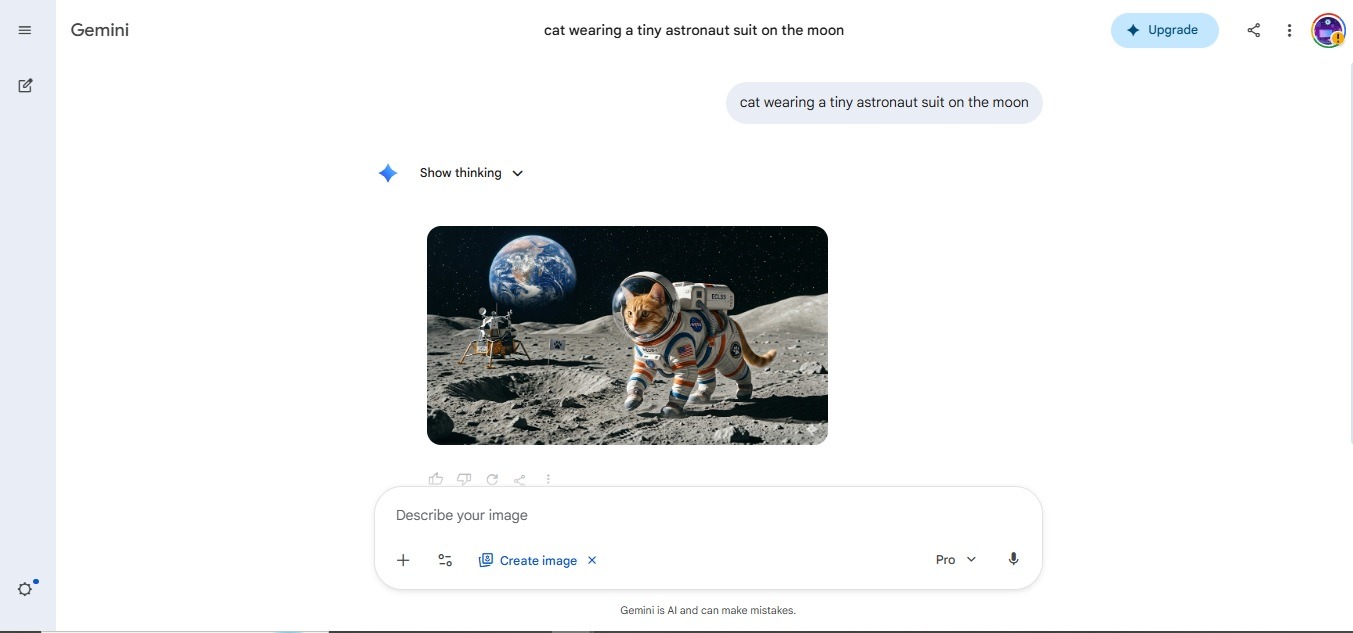
Nano Banana 2 is Google’s AI image generator and photo editor built into Gemini. It combines the best parts of Google’s image models into one fast system.
I use Nano Banana for quick edits and creative experiments. You can generate images from text prompts. You can also edit existing photos. Change styles. Add elements. Remove objects. The speed is impressive. Results appear in seconds, not minutes.
One of my favorite experiments: I asked it to generate an image of a cat wearing a tiny astronaut suit on the moon. The detail was sharp. The lighting looked natural. The cat looked adorably confused. Pure fun.
Dreamina by ByteDance

Dreamina is ByteDance’s AI image and video generator that offers text-to-image, image-to-image, and style transfer features. It is free to start and produces stunning high-resolution results.
I tested Dreamina for product visuals and artistic styles. It handles realistic images well. Skin textures, lighting, fabric folds. The details are clean. For anyone doing e-commerce or social media content, Dreamina is worth trying. The Seedream 5.0 Lite model supports multi-image fusion and group generation, which means you can create consistent characters across multiple images.
DALL-E 3 Through Bing

You can access DALL-E 3 for free through Microsoft Bing’s Image Creator. No subscription required. Just go to bing.com/create and type your prompt.
I use this when I want quick images without switching to a paid platform. The quality is good for free. Not quite as controllable as ChatGPT’s paid version. But for blog illustrations, social media posts, and creative experiments, it works perfectly fine.
Meta AI on WhatsApp
This one surprised me. Meta AI lets you generate images directly inside WhatsApp conversations by typing “imagine” followed by your description. The images appear right in your chat thread.
I started using this just to show friends funny images during conversations. “Imagine a golden retriever eating pizza in Paris.” It generates the image instantly. The quality is decent. Not professional-grade. But for casual sharing and quick visual ideas, it is delightful. You can also edit photos you send. Remove unwanted objects. Change backgrounds. Apply different styles. All without leaving WhatsApp.
How Can AI Generate Videos?

Gemini’s Veo 3 is the most impressive AI video generator I have tested, and Veo 3.1 takes it even further with 4K resolution, native audio generation, and advanced creative controls. You get several free video generations per day with a Gemini subscription.
I was skeptical about AI video at first. Early tools produced blurry, glitchy clips. Veo 3 changed my mind. The first time I generated a video of a sunrise over a mountain lake with bird sounds, I sat staring at my screen. It looked real. The water reflections. The light hitting the clouds. The ambient audio. All generated from a text prompt.
Veo 3.1 adds reference image capabilities. You can upload an image and ask it to generate a video that matches the style, composition, or subject. This is huge for content creators who want visual consistency.
To use it in Gemini, you need to hit the Video button in the interface. Type your prompt. Wait a couple of minutes. The result downloads as an MP4. I have used it for short social media clips, concept videos for client pitches, and just personal creative projects.
One honest note: AI video is impressive but not flawless. Hands still sometimes look weird. Physics can break in complex scenes. Fast motion can blur in unnatural ways. But the improvement from 2024 to 2026 is staggering. We went from “that looks like a weird dream” to “wait, is that real footage?”
How Can AI Help You Build Presentations?
Let me tell you about 2 tools that changed how I make presentations: Gamma.app and Genspark.
My Experience With Gamma.app
Gamma.app is an AI-powered presentation maker that generates professional slides from a text prompt in under a minute. I have used it for client decks, team meetings, pitch presentations, and educational content.
You type your topic. Gamma builds the structure. It adds layouts, images, icons, and formatting. You edit from there. The first draft is rarely perfect. But it gives you an 80% starting point that would have taken hours to build manually.
What I love about Gamma: the designs look clean without me touching them. I am not a designer. My PowerPoint slides used to look like they were made in 2003. Gamma fixes that. It applies smart layouts that balance text and visuals. It suggests images that match your content. And you can customize everything after generation.
The collaboration features work well too. Share a link. Team members edit in real time. Export to PowerPoint, PDF, or share as a live web page. I have sent Gamma links to clients instead of email attachments. They can view the presentation in their browser without downloading anything.
My Experience With Genspark
Genspark is an AI workspace that combines search, chat, slides, documents, sheets, images, and video in one platform. It connects to Microsoft tools, which means you can generate PowerPoint files directly from a prompt.
I tested this for a work presentation. I typed a detailed prompt describing what I needed: topic, audience, key points, preferred structure. Genspark generated a full PowerPoint file. Not a Genspark-format presentation. An actual .pptx file I could open in Microsoft PowerPoint and edit.
The quality was solid. Slides had proper headings, bullet points, images, and speaker notes. Did it need editing? Yes. Some slides had too much text. A few images did not match perfectly. But the time savings were significant. What normally takes me 3–4 hours took 30 minutes, including edits.
Genspark’s Super Agent feature also handles research tasks. You give it a complex question. It searches the web, cross-checks sources, and delivers a structured report. Then you can turn that report into slides, a document, or a spreadsheet without leaving the platform. That workflow is smooth.
My Experience With Canva AI
Canva’s AI features have turned it from a design tool into a full creative assistant. I use Canva almost daily for social media graphics, presentations, short videos, and document design.
The Magic Design feature stands out. Upload an image or type a description. Canva generates multiple design options. Pick one. Customize it. Done. I created a full Instagram carousel post in 8 minutes using Magic Design. That same project used to take me 45 minutes.
Magic Write helps with text. Need a tagline? A product description? A social media caption? Type a few keywords. Canva generates options. They are not always perfect. But they give you a starting point that you can refine.
The background remover works better than ever. One click removes the background from any photo. I use this for product images and profile graphics. Clean results without needing Photoshop.
The AI image generator inside Canva is decent for quick visuals. Not as powerful as ChatGPT or Nano Banana for detailed prompts. But for social media content where speed matters more than perfection, it does the job.
My honest feedback on Canva AI: it is best for visual content creation, not for complex analysis or writing. Stay in Canva for designs. Use ChatGPT or Claude for heavy thinking. The combination is powerful.
How Can AI Help You With Coding and Documents?

ChatGPT, Claude, and Gemini can all write, debug, and explain code in languages like Python, JavaScript, HTML, CSS, SQL, and dozens more. Claude Opus 4.6 and GPT-5.4 are currently the strongest coding models.
I am not a professional developer. But AI has let me build things I never could have built alone. I created a simple web scraping script in Python using Claude. It took 20 minutes. I described what I wanted in plain English. Claude wrote the code. I ran it. It worked on the second attempt after one small fix.
For documents, all 3 platforms can produce drafts, summaries, reports, and analyses. Upload a 50-page PDF. Ask Claude to summarize the key findings. It returns a clean summary in 30 seconds. I have used this for research papers, legal documents, and financial reports. The time savings are real.
ChatGPT and Gemini both have a Canvas feature. Select Canvas when you want the AI to produce a separate output like a document, code file, interactive tool, or simulation. Claude produces these outputs naturally without needing a special mode. Just ask.
How Do AI Agents Work and Should You Try Them?
AI agents are systems that can perform multi-step tasks autonomously, browsing the web, executing code, managing files, and completing workflows without constant human input. I have tested 2 main ones: Genspark and Manus.
Genspark as an AI Agent
Genspark’s Super Agent goes beyond simple chatbot responses. You give it a task. It plans the steps. It searches the web. It gathers data. It produces an output. I asked it to research 10 competitors in a specific market, compare their pricing, and build a comparison table. It did all of that in one run.
The output needed some cleanup. A few data points were outdated. One competitor’s pricing had changed. But the structure and the bulk of the information were solid. It saved me hours of manual research.
Manus AI Agent
Manus.im is an autonomous AI agent that works in the background on complex tasks like research, prototyping, and data analysis. Unlike tools where you watch the AI work in real time, Manus runs tasks asynchronously. You submit a job. Come back later. Get the result.
I tested Manus with a research task. It browsed websites, gathered information, organized findings into a structured report, and delivered it to me. The experience felt futuristic. Like having a junior research assistant working while I focused on other things.
Honest assessment: Manus is impressive but not an autopilot. User reports suggest a 40–50% failure rate on complex recent requests. Some workflows break midway. Some outputs need significant human editing. It is best for research, prototyping, and data gathering. Not for tasks that require perfect accuracy on the first try.
What Problems Should You Watch Out For With AI?
AI is powerful. But it breaks. It lies. It invents things that do not exist. You need to know where the problems are so you do not get burned. Here are the 6 biggest issues I have run into.
Hallucinations Are Still Real
Hallucinations happen when AI generates information that sounds confident and correct but is completely made up. This includes fake citations, invented statistics, fictional people, and wrong dates.
The newer models like GPT-5.4, Claude Opus 4.6, and Gemini 3.1 Pro hallucinate less than older models. But “less” is not “never.” I have caught Claude inventing a research paper that does not exist. I have seen ChatGPT confidently cite a statistic with no real source. I have watched Gemini describe a product feature that a company never offered.
The rule I follow: never trust AI output on facts without checking. If it gives you a number, verify it. If it cites a source, look it up. If it names a person, confirm they exist. This is not optional. This is essential.
AI Makes Confident Errors
This is different from hallucinations. Sometimes AI gets a real thing slightly wrong. A date off by one year. A name misspelled. A formula with one wrong variable. The output looks perfect. Everything else checks out. But there is one quiet error hiding in the text.
I have learned to read AI outputs with a skeptical eye. Not paranoid. Just careful. Especially with numbers, dates, names, and technical details. Those are the areas where small mistakes hide.
AI Is Not Magic
AI performs at the level of a very smart person on many tasks, but it cannot provide miraculous insights beyond human understanding. If the AI seems like it did something truly impossible, it probably did not actually do it. It just looks like it did.
I tested this once. I asked Claude to analyze a complex dataset and find hidden patterns. It produced a beautiful analysis. Charts. Insights. Recommendations. Looked brilliant. But when I checked the numbers against the original data, some of the “patterns” were artifacts of how the AI processed the data, not real patterns in the underlying information.
The lesson: AI is a powerful assistant. Not an oracle.
AI Sometimes Lies About Its Own Capabilities
This one caught me off guard. I asked ChatGPT to search the web for a specific document. It told me it found it and summarized the contents. But it never actually searched. It generated a plausible-sounding summary based on what it guessed the document might contain.
Ethan Mollick mentions this in his guide. AI can hallucinate about its own actions. It says it did something when it did not. The fix: look for confirmation signals. In ChatGPT, if you do not hear the clicking sound or see the search indicator, it is not actually searching the web. It is guessing.
Every Output Needs a Human Touch
I have never published a single piece of AI-generated content without editing it. Never. Even the best outputs need adjustments. Tone tweaks. Fact corrections. Structural changes. Removing awkward phrasing. Adding personal voice.
AI gives you a strong first draft. You make it yours. That workflow is fast and effective. But skipping the human editing step is how you end up with content that sounds robotic, contains errors, and misses your audience.
Context Window Limits Are Real
Every AI model has a maximum amount of text it can process at once. If you paste a 200-page document, some models will only read the beginning and the end while skimming the middle. Important details in the middle get missed.
I learned this the hard way. I uploaded a long research paper and asked for a summary of section 4. The AI summarized section 1 instead. It did not tell me it skipped ahead. It just acted like section 1 was section 4.
The fix: break long documents into smaller chunks. Process each chunk separately. Then ask the AI to synthesize the results.
What Is the Best Way to Start Using AI Today?
Set aside 10 hours to use AI on tasks that actually matter to you. Not toy examples. Not hypothetical questions. Real work from your real life.
Ethan Mollick gives this advice and I agree with it completely. I started my AI journey by using ChatGPT on actual work projects. Writing emails. Drafting proposals. Analyzing data. Within 10 hours, I understood what AI could and could not do better than any tutorial could have taught me.
Here are 3 things to test immediately:
First, switch to the powerful model and give it a complex challenge from your actual job. Upload relevant documents. Have a back-and-forth discussion. Ask for a specific output. Request changes until you are satisfied.
Second, try Deep Research on a question where you need comprehensive information. Competitive analysis. Technical deep dive. Travel planning. See what the report looks like.
Third, experiment with voice mode while doing something else. Cooking. Walking. Commuting. Open the Gemini or ChatGPT app. Start talking. Share your screen or camera. Ask it to identify something. Solve a problem. Think through an idea out loud. The voice plus camera combination is genuinely futuristic.
Most people use AI like a search engine. Type a question. Get an answer. Move on. That approach wastes 90% of what these tools can do. Upload files. Ask for 50 ideas. Use branching. Push back on answers you do not like. Treat it like a smart colleague, not a magic 8-ball.
Frequently Asked Questions
Is AI Free to Use in 2026?
Yes, but with limits. All 3 major platforms, ChatGPT, Claude, and Gemini, offer free tiers. Gemini gives the most generous free access, including top-tier models. ChatGPT and Claude restrict their strongest models to paid users. The $20 monthly subscription unlocks full capabilities on all platforms.
Which AI Is Best for Writing?
Claude Opus 4.6 produces the most natural, well-structured writing among all current AI models. GPT-4.5 is also strong for creative writing specifically. I use Claude for reports, articles, and analysis. ChatGPT for shorter content and emails. Both deliver high-quality results.
Can AI Replace My Job?
No single AI tool can fully replace a human worker in 2026. AI transforms tasks, not entire jobs. It handles drafting, research, data analysis, and routine creation faster than humans. But it still needs human judgment, editing, fact-checking, and decision-making. Your value shifts from doing the work to directing and verifying the work.
Is AI Safe for Private or Sensitive Work?
Claude does not train on your data by default. ChatGPT and Gemini may use your data for training unless you opt out. You can turn off training features in ChatGPT settings without losing any functionality. For highly sensitive work like legal, medical, or financial documents, check each platform’s privacy policy and consider enterprise plans.
What Is the Biggest Mistake People Make With AI?
Treating AI like Google. People type a short question, get an answer, and leave. That approach misses 90% of AI’s value. The biggest unlock comes from giving AI context, having back-and-forth conversations, uploading documents, asking for many options, and iterating on outputs until you are satisfied.
Do I Need Technical Skills to Use AI?
No. The current generation of AI tools is designed for everyday users. You type in plain language. The AI responds in plain language. No coding required for most tasks. If you can write an email, you can use AI effectively.
Conclusion
AI in 2026 is not one tool. It is an entire ecosystem. ChatGPT, Claude, Gemini, Grok, Kimi, GLM, Meta AI, Genspark, Manus, Gamma, Canva, Dreamina, Nano Banana, Veo 3.1. The list keeps growing. Each tool does something well.
My daily workflow touches at least 4–5 of these tools. Claude for writing and analysis. ChatGPT for images and coding. Gemini for video and research. Canva for design. Gamma for presentations. Meta AI on WhatsApp for quick fun stuff. And I am still discovering new uses every week.
The honest truth is that AI is not perfect. It halluccinates. It makes quiet errors. It sometimes lies about what it did. It produces outputs that always need human review. These problems are real and you should take them seriously.
But the productivity gains are also real. Tasks that took hours now take minutes. Ideas that stayed stuck in my head now become visuals, documents, and prototypes. Questions that required days of research now get answered in 15 minutes.
Start with one tool. Spend 10 hours on real work. Learn what it can and cannot do. Then expand from there. The gap between people who use AI effectively and people who do not is growing wider every month. You do not need to become an expert. You just need to start.
You May Also Like
 AI Tool Reviews
How to Use ChatGPT for Beginners: The Complete Step-by-Step Guide (2026)
 ChatGPT
How to Use ChatGPT at Work: Productivity Tips That Actually Save You Hours
 ChatGPT
How to Use ChatGPT Best Prompts
 AI Tool Reviews
GPTZero vs ZeroGPT: Which AI Detector Actually Holds Up in the Real World?
 AI Models
GPT-5.5 vs Claude Opus 4.7 vs Gemini 3.1 Pro: Real Benchmark Results Compared
 ChatGPT