

If you’ve ever generated an image with Google Gemini and downloaded it, you already know the frustration. That small but visible watermark sits right in the corner of your image — and it doesn’t move. Whether you’re a content creator, a designer, or just someone who wants a clean photo for personal use, that watermark gets in the way.
I’ve been through this exact problem many times. I generate an image using Gemini, it looks great, and then I see it — the semi-transparent Google Gemini logo stamped in the bottom-right corner. For professional work, that’s simply not acceptable. So I went looking for ways to fix it, and I found several methods that actually work.
In this guide, I’ll walk you through everything you need to know. You’ll learn what the Gemini watermark actually is, why Google puts it there, and most importantly, how to remove it. I’ll cover the best AI-powered tool I personally use, which is PhotoRoom’s Remove Object from Photo tool, plus several other free alternatives that get the job done.
⚠️ Important Legal Note: This guide is intended for removing watermarks from images you generated using Gemini. Removing watermarks from images you don’t own may violate copyright laws in your jurisdiction. Always use these methods responsibly.
What Is the Google Gemini Watermark?
The Google Gemini watermark is a semi-transparent AI logo that Google automatically applies to every image its AI generates. It appears in the bottom-right corner and serves as a transparency marker — it tells anyone viewing the image that it was created by artificial intelligence.
Google introduced this watermark as part of its commitment to responsible AI. With deepfakes and misinformation on the rise, tech companies like Google have agreed to label AI-generated content. The Gemini watermark is how Google fulfills that commitment visually.
But here’s something most users don’t know: there are actually two types of watermarks embedded in every Gemini image.
What Are the Two Types of Gemini Watermarks?
Gemini uses two distinct watermarking systems: a visible logo watermark and an invisible digital watermark called SynthID. Understanding both is critical before you attempt any removal.
- The Visible Watermark (Logo): This is the small four-pointed star / Google Gemini logo you can see with your naked eye in the bottom-right corner of your image. For images up to 1024 pixels on either side, the logo is 48×48 pixels with a 32-pixel margin. For larger images, it scales up to 96×96 pixels. Google applies this using a technique called alpha compositing — meaning it blends the logo into your image mathematically, not just paste it on top.
- The Invisible Watermark (SynthID): Developed by Google DeepMind, SynthID encodes an imperceptible digital signal directly into the pixel values of your image. It survives cropping, resizing, color adjustments, and even compression. This watermark is designed to let platforms and researchers detect AI-generated content at scale, even after editing.
Here’s something very important you need to know: You can remove the visible watermark, but on the other hand You cannot meaningfully remove SynthID without destroying your image quality.
This guide focuses on the visible watermark — the one that actually bothers people in real, day-to-day use.
| Watermark Type | Visible to Human Eye? | Can Be Removed? | Purpose |
|---|---|---|---|
| Visible Logo (Alpha Blended) | ✅ Yes | ✅ Yes (with tools) | Immediate transparency for viewers |
| SynthID (Invisible) | ❌ No | ❌ No (without quality loss) | Algorithmic AI content verification |
Why Would You Want to Remove the Gemini Watermark?
There are several practical, legitimate reasons why users want to remove the visible Gemini watermark from their AI-generated images. The watermark isn’t always appropriate for every context.
- Professional presentations and client work: If you’re using an AI-generated image for a client mockup, pitch deck, or proposal, the Gemini watermark signals the image as a rough draft and may undermine the professional quality of your work.
- Social media content creation: Content creators who generate images for Instagram, Pinterest, or YouTube thumbnails want clean visuals. The Gemini logo is a distraction that takes attention away from the subject.
- eCommerce product photography: Some brands use AI-generated backgrounds or creative imagery for their product listings. A visible watermark violates the visual standards of platforms like Amazon or Shopify.
- Personal and artistic projects: Artists using Gemini as part of their creative workflow want full ownership of the final output’s appearance — and that means no corporate logo in the corner.
- Educational and research use: Academics and researchers analyzing AI-generated imagery sometimes need clean versions for academic papers or comparative studies.
Method 1: Remove the Gemini Watermark Using PhotoRoom (My Recommended Method)
The fastest and most effective way I’ve found to remove the Gemini watermark is using PhotoRoom’s Remove Object from Photo tool. It uses AI to paint over any selected area and intelligently fills it in with a natural-looking background — in seconds.
I’ve personally tested this tool on dozens of Gemini-generated images, and the results are consistently clean. The AI does a remarkable job of reconstructing the pixels beneath the watermark so you’d never know it was there.
According to PhotoRoom’s own data, businesses using their AI tools reduce photo editing costs by 93%+ and speed up their workflow by 4x. With over 300 million downloads, this tool has established trust and reliability across the globe.
How Do You Use PhotoRoom to Remove the Gemini Watermark Step by Step?
Using PhotoRoom to remove the Gemini watermark is a three-step process that takes under 30 seconds. Here’s the exact method I use every time:
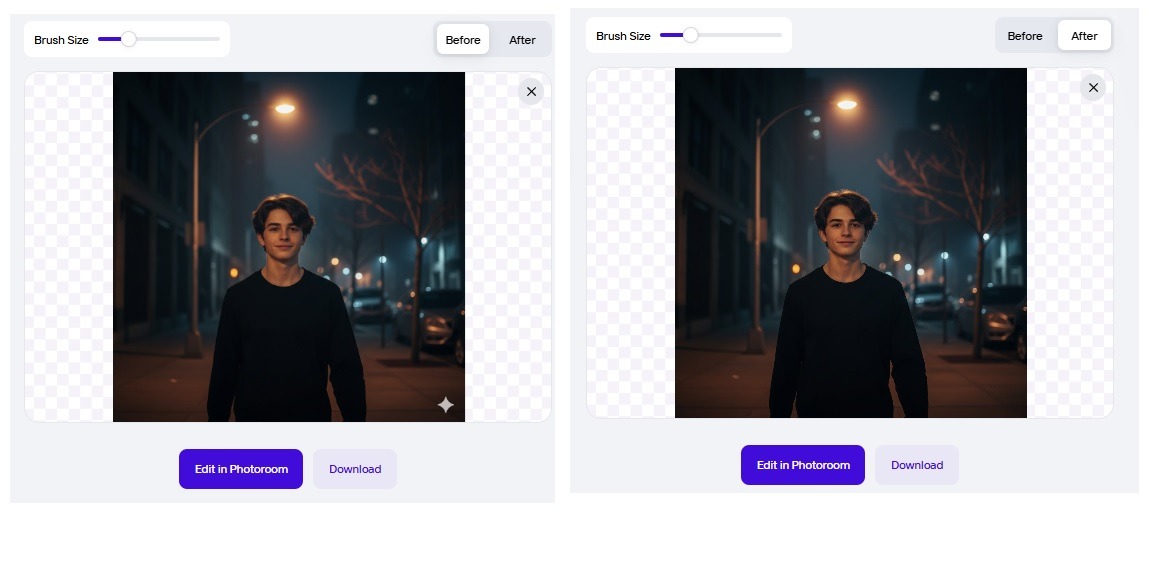
- Go to the PhotoRoom Remove Object Tool: Visit Photoroom.com in your browser. You don’t need to create an account to use it for basic removal. The tool works on desktop and mobile.
- Upload Your Gemini Image: Drag and drop your watermarked image into the upload zone, or click to browse. PhotoRoom supports PNG and JPG files of all dimensions. Make sure you’re uploading the full-resolution download from Gemini — not a screenshot.
- Paint Over the Watermark: Once your image loads, use the brush tool to paint over the Gemini watermark in the bottom-right corner. You don’t need to be precise — just cover the logo completely. Adjust the brush size to be slightly bigger than the watermark for best results.
- Let the AI Do Its Work: PhotoRoom’s AI automatically detects the selected area and removes it. It fills in the background intelligently, whether the area under the watermark is a solid color, a gradient, or a complex scene.
- Download Your Clean Image: Once the preview looks good, download your image as Standard resolution or HD. If you’re using the free version, you are allowed to download a standard resolution of 1280x1280px
Pro Tip: If the background under the watermark is very complex (like detailed textures or gradients), I recommend applying the brush tool twice in succession. The second pass of the AI tends to refine the reconstruction even further, giving you a near-perfect result.
Method 2: How to Remove the Gemini Watermark Using Snapseed (Free Mobile Method)

You can remove the Gemini watermark on your phone for free using Snapseed’s Healing tool. Snapseed is a free photo editing app by Google available on both iOS and Android. Many users already have it installed.
How Does Snapseed Remove the Watermark from a Gemini Image?
Snapseed’s Healing tool works similarly to PhotoRoom — it samples nearby pixels and reconstructs the area you paint over. Here’s how to do it:
- Install Snapseed on your phone
- Tap Tools in the bottom menu, then select Healing.
- Pinch to zoom into the bottom-right corner of your image where the Gemini watermark sits.
- Use your finger to paint over the watermark. Keep your strokes precise and focused.
- Snapseed will automatically attempt to fill the area with surrounding pixel data.
- Tap the checkmark to confirm, then tap Export to save your watermark-free image.
Snapseed works best when the area around the watermark has a relatively simple background — like a sky, a wall, or a flat surface. For complex backgrounds, you may need to make multiple passes or switch to PhotoRoom for a cleaner result.
Method 3: Using Adobe Photoshop to Remove the Gemini Watermark

Adobe Photoshop’s Generative Fill or Content-Aware Fill features can remove the Gemini watermark with high precision. This method gives you the most control, especially for complex backgrounds.
Which Photoshop Feature Works Best for Gemini Watermark Removal?
Generative Fill (available in Photoshop 2024 and later) is the most effective Photoshop feature for removing AI watermarks. Here’s the workflow:
- Open your Gemini image in Adobe Photoshop.
- Select the Lasso Tool (L) and draw a selection around the Gemini watermark in the bottom-right corner. Make your selection slightly larger than the logo.
- Right-click on the selection and choose Fill, then select Content-Aware. For newer versions, click Generative Fill in the Contextual Toolbar.
- For Generative Fill, leave the prompt blank and click Generate. Photoshop’s AI will create multiple fill options based on the surrounding image content.
- Choose the best result from the Properties panel and flatten your image.
- Export your image as PNG or JPEG.
Photoshop gives you the most professional-grade results but requires a paid Adobe Creative Cloud subscription. If you already have Photoshop, this is a powerful option — especially for high-resolution, commercial images.
Method 4: How to Use the Gemini Watermark Cleaner Chrome Extension
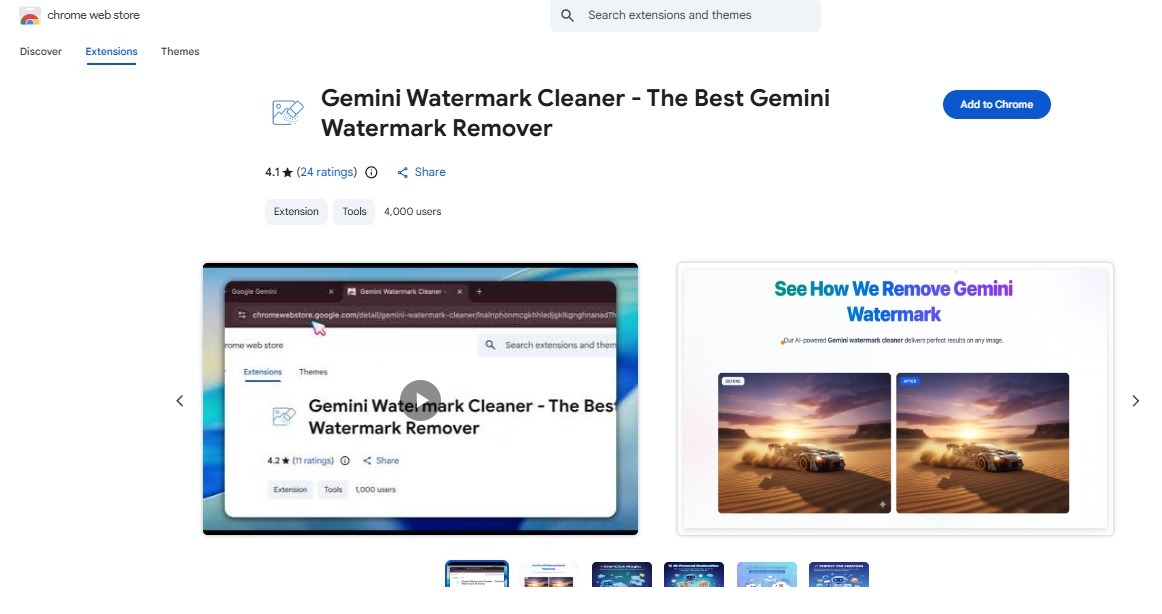
The Gemini Watermark Cleaner Chrome extension removes the watermark automatically before you even download the image. This is the most convenient method if you regularly generate multiple images using Gemini.
How Does the Gemini Watermark Cleaner Extension Work?
The extension intercepts the download process and applies reverse alpha blending to remove the visible watermark before the file saves to your device. Here’s how to set it up:
- Search for “Gemini Watermark Cleaner“ in the Chrome Web Store and install the extension.
- Once installed, visit gemini.google.com and generate your image as normal.
- When you click the download button, the extension runs automatically — you don’t need to do anything extra.
- Your image is saved to your device already free of the visible watermark.
This method uses the mathematically precise reverse alpha blending technique — the same math Google uses to apply the watermark, just in reverse. It’s fast, free, and requires zero manual editing effort on your part.
Method Comparison: Which Gemini Watermark Removal Tool Is Best for You?
The best method depends on your device, skill level, and how often you need to remove Gemini watermarks. Here’s a clear comparison:
| Method | Cost | Skill Level | Best For | Speed |
|---|---|---|---|---|
| PhotoRoom Remove Object | Free (basic) | Beginner | Any background, web-based use | ⚡ ~5 seconds |
| Snapseed Healing Tool | Free | Beginner | Simple backgrounds, mobile use | ⚡ ~30 seconds |
| Adobe Photoshop Generative Fill | Paid ($20+/mo) | Intermediate | High-res, complex commercial images | 🕐 ~2 minutes |
| Gemini Watermark Cleaner Extension | Free | Beginner | Frequent Gemini users on Chrome | ⚡ Automatic |
| Reverse Alpha Blending Tool (Web) | Free | Beginner | Technical users wanting precision | ⚡ ~5 seconds |
My personal recommendation is PhotoRoom for most users. It’s free, browser-based, requires no installation, and the AI reconstruction is impressive — even on complex backgrounds. I use it as my go-to tool because the results are consistently clean and professional.
What Is SynthID and Can You Truly Remove the Invisible Gemini Watermark?
No — the SynthID invisible watermark cannot be removed without significantly degrading your image quality. This is an important distinction that many guides overlook.
SynthID was developed by Google DeepMind and works by embedding imperceptible signals directly into the pixel values of your image during the generation process. Unlike the visible logo, SynthID is not “on top” of your image — it is your image. The watermark survives cropping, color grading, resizing, filtering, and even repeated screenshot captures.
According to Google’s official documentation, SynthID is designed so that removing it would require destroying the image itself. This is intentional. The invisible watermark exists to help fact-checkers, researchers, and platforms verify AI-generated content at scale — even when someone has deliberately removed the visible logo.
What does this mean for you? Even after you remove the visible Gemini logo using PhotoRoom or any other tool, AI detection systems that specifically scan for SynthID will still be able to identify your image as AI-generated. If AI transparency in the content you publish is important to your audience or your platform’s policies, be aware that the invisible signature remains.
Tips to Get the Best Results When Removing the Gemini Watermark
Following a few best practices ensures the cleanest possible watermark removal, regardless of which tool you use. Here’s what I’ve learned through trial and error:
- Always download at full resolution: Save your Gemini image at its original resolution before attempting watermark removal. Screenshots often compress the image and can make the watermark removal less precise.
- Remove the watermark before editing: If you plan to crop, resize, or add filters to your image, do the watermark removal first. Editing first can alter the watermark’s position and alpha values, making automated tools less effective.
- Use a larger brush size: When using PhotoRoom or Snapseed, make your brush slightly larger than the watermark. This ensures you cover all semi-transparent pixels around the edges of the logo.
- Check the corner after removal: Always zoom into the bottom-right corner of your processed image to verify the removal looks clean. Occasionally, a faint residual artifact may remain, and a second pass with the tool solves it.
- Use PNG format for best quality: If image quality is critical, save your Gemini image as PNG rather than JPG. PNG is lossless and preserves every pixel exactly, giving removal tools the most accurate data to work with.
Frequently Asked Questions About Removing the Google Gemini Watermark
Is it illegal to remove the Google Gemini watermark?
No — removing a watermark from images you generated is generally not considered illegal, but the legal landscape varies by country. Since you prompted and created the image, removing your own AI watermark for personal or commercial use is widely considered acceptable. However, removing watermarks from images you do not own — such as stock photos or other people’s licensed works — can violate copyright law under the DMCA or equivalent regulations in other countries. Always use watermark removal responsibly and only on content you have rights to.
Does removing the visible watermark also remove the SynthID invisible watermark?
No — removing the visible Gemini logo has absolutely no effect on the invisible SynthID watermark. The two systems are completely separate. SynthID is embedded at the pixel generation level and cannot be reversed without destroying image quality. If an AI detection system scans specifically for SynthID, it will still flag your image as AI-generated regardless of whether you removed the visible logo.
Will the watermark-removed image look exactly the same as the original?
Yes — in nearly all cases, the result looks identical to the eye. Tools like PhotoRoom use AI-powered inpainting, while reverse alpha blending tools use mathematics to reconstruct the exact pixels under the watermark with extremely high accuracy. The only potential differences are imperceptible color shifts of plus or minus one pixel value in the watermark region — completely invisible to human vision.
Can I remove the Gemini watermark on my phone?
Yes — you can remove it on mobile using either Snapseed (free) or the PhotoRoom mobile app (free for basic use). Both apps are available on iOS and Android. Snapseed’s Healing tool and PhotoRoom’s Remove Object feature work on mobile just as they do on desktop. For complex backgrounds, PhotoRoom tends to give cleaner results on mobile.
Does removing the watermark affect image quality?
No — when done correctly using AI inpainting or reverse alpha blending, removing the Gemini watermark does not reduce your overall image quality. The tool only modifies the small bottom-right corner where the watermark sits. Every other pixel in your image remains completely untouched.
Can Gemini Watermark Cleaner remove the watermark automatically on every download?
Yes — the Gemini Watermark Cleaner Chrome extension removes the watermark automatically on every image you download from gemini.google.com. Once installed, it works without any manual intervention, applying the reverse alpha blending algorithm before the file saves to your computer.
Conclusion
Removing the Google Gemini watermark doesn’t have to be complicated. You have multiple free, reliable methods available right now — and most of them take under 30 seconds to complete.
For most users, I recommend starting with PhotoRoom’s Remove Object from Photo tool. It’s free, browser-based, produces clean results on virtually any background, and requires zero technical knowledge. Just upload, paint over the watermark, and download.
If you’re on mobile and want something even simpler, Snapseed’s Healing tool is a solid free alternative that most people already have on their phones. For power users who generate Gemini images frequently, the Gemini Watermark Cleaner Chrome extension automates the entire process so you never have to think about it again.
Just remember — the visible watermark is gone, but the invisible SynthID watermark remains embedded. If your work requires full transparency about AI origins, be honest with your audience. Use these tools where it makes sense, and always respect copyright and platform policies.
Now go ahead — clean up those images and put them to work. 🎨
You May Also Like
 AI Tool Reviews
How to Use ChatGPT for Beginners: The Complete Step-by-Step Guide (2026)
 AI Tool Reviews
GPTZero vs ZeroGPT: Which AI Detector Actually Holds Up in the Real World?
 AI Models
GPT-5.5 vs Claude Opus 4.7 vs Gemini 3.1 Pro: Real Benchmark Results Compared
 AI Tool Reviews
Kimi vs ChatGPT: Is Kimi AI Actually Better Than ChatGPT?
 AI Models
Kimi K2.6 vs Claude Opus 4.7: Which AI Comes Out on Top?
 ChatGPT