

Classplus login is the process of signing into your Classplus account through the mobile app or web browser at web.classplusapp.com to access live classes, recorded lectures, tests, study materials, and course management tools. You’ll need your registered mobile number and an OTP (one-time password) to get in. The whole process takes about 30 seconds once your institute has added you to the system.
I’ve spent a good amount of time exploring the Classplus platform from both the student side and the educator side. And here’s what I noticed early on. The login process itself isn’t complicated. It’s actually one of the simpler ones I’ve come across in the ed-tech space. But a surprising number of people run into problems. Some can’t find the right URL. Others don’t receive their OTP. A few get stuck on error messages they don’t understand. I was confused at first too because Classplus doesn’t work like a typical website where you just create an account on your own. Your coaching institute has to add you first. That’s the part nobody tells you upfront.
This guide walks you through everything about the Classplus login. You’ll find step-by-step instructions for both mobile and web, common problems and their fixes, security tips, and answers to the most frequently asked questions. Whether you’re a student trying to get into your online class or a teacher managing your coaching app, this article covers it all.
What Is Classplus and Who Is It For?
Classplus is an education technology platform that helps coaching institutes, tutors, and educators manage online teaching through branded mobile apps and web dashboards. The platform was built by Bunch Microtechnologies Pvt Ltd, an ed-tech company headquartered in Noida, India. Over 1 lakh (100,000+) coaching institutes across 1,100+ Indian cities use Classplus to run their digital education businesses.
I wasn’t familiar with Classplus until a friend who runs a small coaching center in Delhi told me about it. He’d been struggling to manage his students, class schedules, and payments all in different places. Classplus gave him one branded app that handled everything. His students downloaded the app, logged in, and had access to live classes, recorded lectures, notes, and tests all in one spot. It was clean and organized.
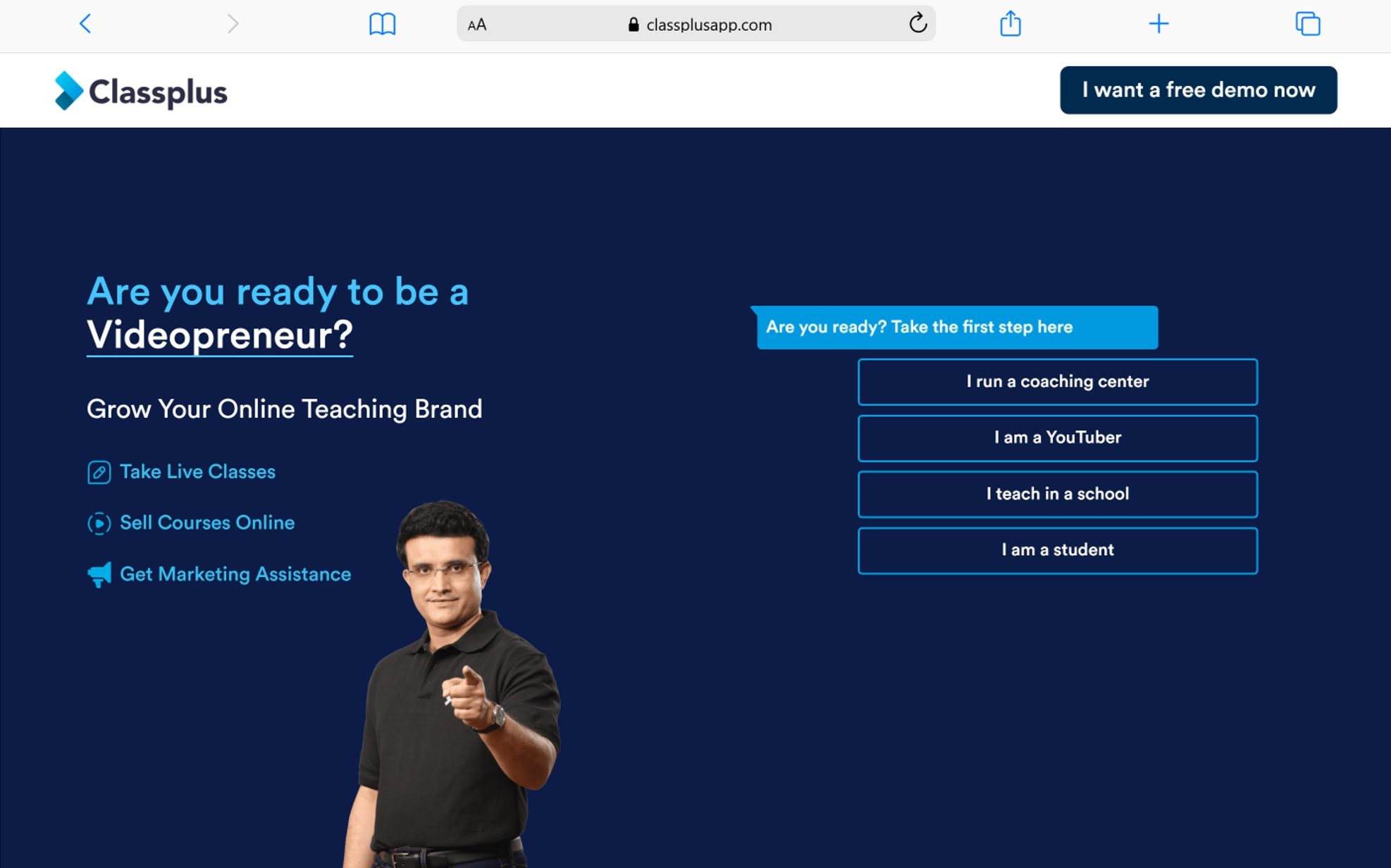
Classplus serves 2 main user groups. Teachers and coaching institute owners use it to manage their business, upload content, track attendance, and sell courses. Students use it to attend classes, watch lectures, take tests, and download study materials. Both groups access the platform through the Classplus login, but they see different dashboards based on their role.
What Features Does Classplus Offer?
Classplus offers 7 core features: live classes, video lectures, online assessments, a content store, a stats dashboard, a marketing dashboard, and a custom website builder. Each feature serves a specific purpose in the online teaching workflow.
Here’s what each feature does:
- Live classes let teachers conduct real-time sessions with SSL security and automatic recording
- Video lectures allow teachers to upload unlimited pre-recorded content in an organized format
- Online assessments enable teachers to create, upload, and assign tests with auto-correction, and even scan physical question papers to generate online tests in under 60 seconds
- Content store gives institutes their own e-commerce section where students can browse and purchase courses
- Stats dashboard tracks all student activity, progress, and engagement on the app
- Marketing dashboard helps institutes create sales coupons, send push notifications, and design promotional materials like posters and thumbnails
- Custom website provides each institute with a branded website where students can buy courses, download the app, and send inquiries
I was genuinely surprised by how much the platform covers. Most tools I’d seen before handled either content delivery or business management. Classplus does both. For a teacher running a small to mid-size coaching business, that’s a meaningful time saver.
How Do You Log Into Classplus on a Mobile Phone?
To log into Classplus on mobile, download your institute’s branded app from the Google Play Store or Apple App Store, enter your registered mobile number, verify the OTP sent to your phone, and you’re in. The process takes less than a minute.
I was walking through this process with a student who couldn’t figure out why a generic “Classplus” search in the app store wasn’t showing the right app. Here’s the thing that trips people up. Most institutes have their own branded version of the Classplus app. It won’t always say “Classplus” in the name. It’ll have your coaching institute’s name and logo. You need to download the specific app your institute told you to use.
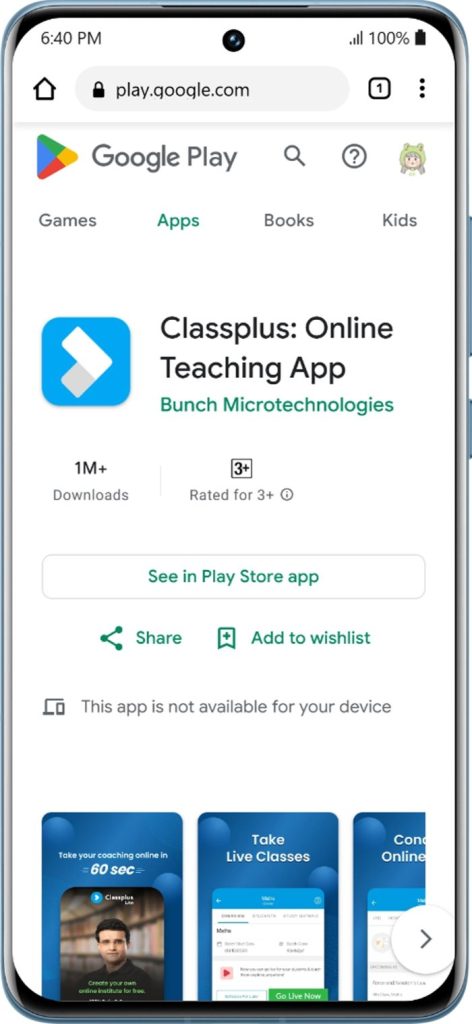
Here are the steps laid out clearly:
- Download your institute’s app from the Google Play Store or Apple App Store (ask your institute for the exact app name if you’re unsure)
- Open the app and you’ll see a login screen
- Enter your registered mobile number (this must be the same number your institute has on file for you)
- Receive an OTP on your phone via SMS
- Enter the OTP and tap verify
- Access your dashboard with classes, notes, tests, and study materials
That’s it. Once you’ve logged in the first time, the app usually keeps you signed in unless you manually log out or clear your app data.
How Do You Log Into Classplus on a Laptop or Desktop?
To log into Classplus on a laptop or desktop, open Google Chrome, go to web.classplusapp.com, enter your registered mobile number or email ID along with your institute’s Org Code, and sign in. The web version works best on Chrome, though Firefox and Edge also work.
I tried the web login on my laptop because I wanted to watch a longer lecture on a bigger screen. The process was straightforward, but there was one thing that caught me off guard. You need an Org Code. This is a unique code assigned to your coaching institute. If you don’t have it, you’ll need to ask your teacher or the institute admin. Without it, the web login won’t work.
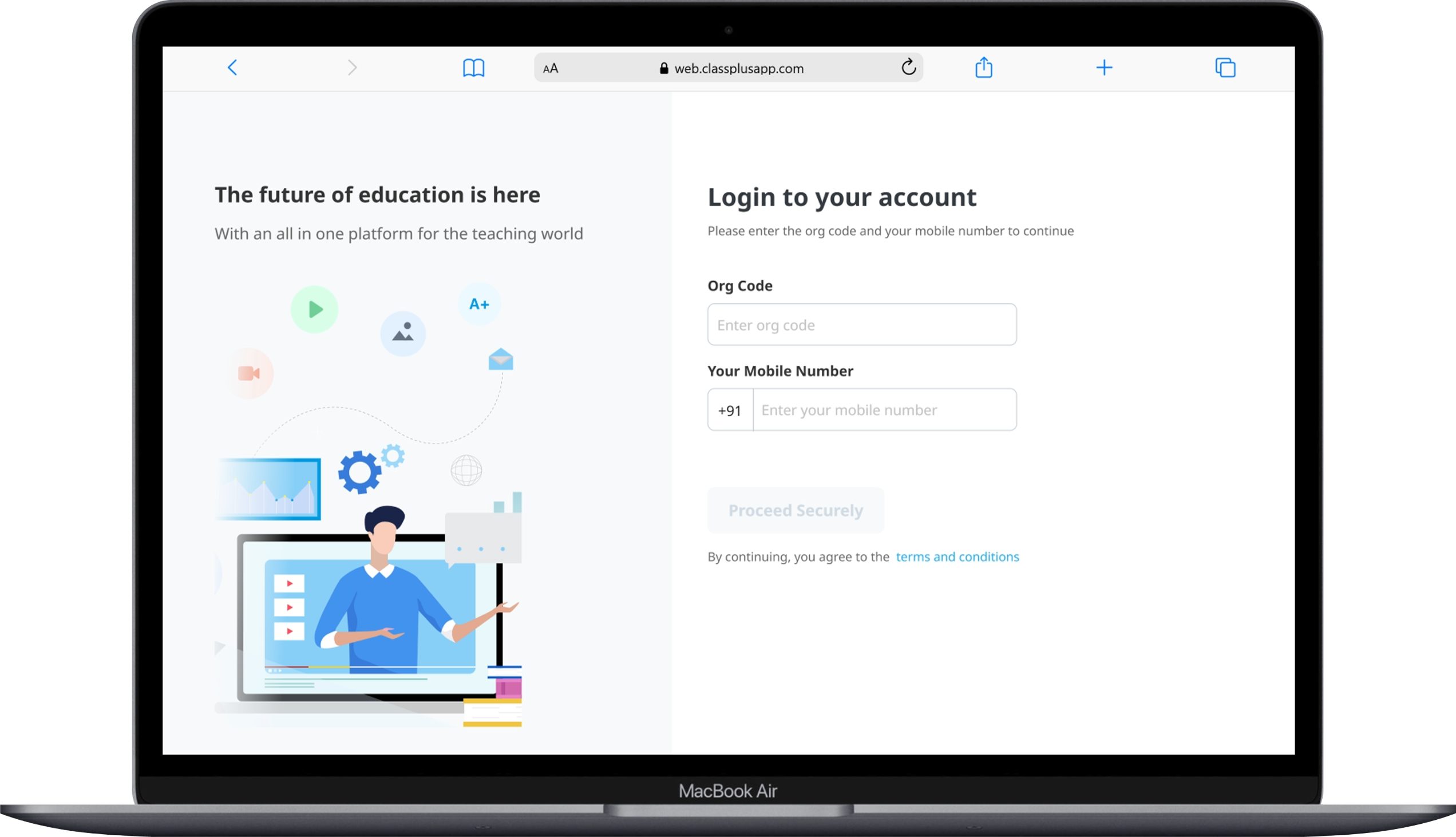
Here’s the step-by-step process:
- Open Google Chrome (or another supported browser)
- Navigate to web.classplusapp.com
- Enter your registered mobile number or email address
- Type in your institute’s Org Code
- Verify through OTP or password depending on your institute’s setup
- Log in to your student or teacher dashboard
One helpful tip. Bookmark the login page after your first visit. This saves time and prevents you from having to search for the URL every day. I bookmarked it right after my first login and it’s been smooth since then.
What is the difference between the Classplus App and Classplus Web?
The Classplus app is a mobile application for phones and tablets, while Classplus Web is a browser-based version accessed at web.classplusapp.com for laptops and desktops. Both use the same Classplus login credentials. Your data, classes, and progress stay synced across both.
| Feature | Classplus App | Classplus Web |
|---|---|---|
| Access | Mobile phone or tablet | Laptop or desktop browser |
| Notifications | Push notifications in real time | No push notifications |
| Best for | Quick access, short tasks, on-the-go learning | Long lectures, note-taking, test-taking |
| Download required | Yes (from app store) | No (browser-based) |
| Login method | Mobile number + OTP | Mobile/email + Org Code |
| Screen experience | Smaller, portable | Larger, more comfortable |
I found myself switching between the two pretty often. The app was great for checking notifications and catching up on short updates. But for anything longer than 20 minutes, like a full lecture or an assessment, the web version on my laptop was more comfortable. Many students do the same thing. Your Classplus login works on both, so there’s no extra setup needed.
What Is CMS Login and Do Students Need It?
CMS login (Content Management System login) is an administrative tool used by coaching institutes to upload content, manage batches, and track student data. Students do not need a separate CMS login. When you sign in with your regular Classplus login, you automatically see the CMS content your institute has made available to you.
I noticed this question comes up a lot in search results. Students see terms like “CMS login,” “CMS portal,” or “CMS Classplus” and think they need special access. You don’t. The CMS is the backend that your institute uses. As a student, everything the CMS delivers shows up on your dashboard after a normal Classplus login. No extra credentials needed.
If you’re a teacher or institute admin, the CMS is where you upload lectures, create tests, manage student batches, and track performance metrics. Access to the CMS is provided by Classplus when you set up your coaching institute account.
What Are the Most Common Classplus Login Problems?
The 6 most common Classplus login problems are: OTP not received, wrong mobile number, web login page not loading, “logged in elsewhere” error, app crashes, and Org Code issues. Each one has a specific fix, and I’ve either experienced or helped someone troubleshoot most of them.
What Should You Do If the OTP Doesn’t Arrive?
Check your mobile signal strength, wait at least 30 seconds, and try again. OTP delivery depends on your network provider. If your signal is weak or your phone is in an area with poor coverage, the OTP can get delayed or fail entirely.
I had this happen once when I was in a basement with bad reception. I moved to a spot with better signal, hit “Resend OTP,” and it came through within seconds. If the problem continues even with good signal, make sure your phone’s message inbox isn’t full and that you haven’t accidentally blocked SMS from unknown numbers.
What If You’re Getting a “Logged In Elsewhere” Error?
The “logged in elsewhere” error means your Classplus account has an active session on another device or browser. This happens when you switch devices without logging out first, or when your previous session didn’t close properly.
Here are 3 ways to fix this:
- Open an incognito or private window in your browser, go to the Classplus login page, and sign in fresh
- Change your password through the “Forgot Password” option, which forces all active sessions to log out
- Contact your institute admin and ask them to reset your session from their CMS panel
I helped a classmate fix this issue once. She’d logged in on her phone and her sister’s tablet, and neither device would let her back in after a few days. Changing the password cleared everything up.
What Should You Do If the Classplus Web Page Won’t Load?
Clear your browser cache, switch to Google Chrome, and make sure you’re using the correct URL: web.classplusapp.com. Outdated cached data is one of the most common reasons the web login page fails to load properly.
Here’s a quick troubleshooting list:
- Clear cookies and site data for classplusapp.com in your browser settings
- Use Google Chrome as your primary browser (it’s the most compatible with Classplus)
- Disable ad blockers or browser extensions that might interfere with the page
- Check your internet connection to make sure it’s stable
- Try a different device to rule out hardware or software conflicts
I’ve seen students type in wrong URLs like “classplus.web” or “www.classplus.com” and wonder why nothing loads. The correct web login URL is web.classplusapp.com. Bookmark it once and you won’t have this problem again.
What If You Entered the Wrong Mobile Number?
Contact your coaching institute’s admin and ask them to update your mobile number in the system. You can only log in with the number that your institute registered you with. If there’s a mismatch, you won’t receive the OTP and the login will fail.
This is a problem I’ve seen trip up new students more than anything else. When you enrolled at your coaching institute, the staff entered your phone number into the Classplus system. If they made a typo, or if you gave them an old number, the login won’t work on your current phone. The fix is simple. Just ask the institute to correct it.
How Does Classplus Login Work for Teachers and Institute Owners?
Teachers and institute owners log into Classplus through their own branded app or the Classplus CMS dashboard, using credentials provided during their Classplus onboarding process. The teacher dashboard gives access to class management, content uploads, student tracking, fee management, and marketing tools.
I was talking to a coaching center owner who’d been using Classplus for about 2 years. He told me the onboarding process was handled by a Classplus team member who walked him through everything. He got a branded app with his institute’s name and logo, a web dashboard for content management, and training on how to use each feature. His login was set up during that process.
If you’re a teacher considering Classplus, here’s what the login process looks like after setup:
- Open your branded app or navigate to your CMS dashboard URL
- Enter your registered phone number or email
- Verify through OTP or password
- Access your teacher dashboard where you can manage classes, content, students, and finances
The teacher dashboard includes features that students don’t see, like the marketing dashboard for creating coupons and promotional content, the stats dashboard for tracking student engagement, and the fee management system for handling payments.
How Much Does Classplus Cost?
Classplus pricing is available upon request and varies based on the features and scale of your coaching institute. The platform offers multiple plans, with the Pro plan starting at approximately ₹15,999 per year for medium to large coaching centers. Custom pricing applies for larger institutes with specific requirements.
| Plan Type | Estimated Cost | Best For |
|---|---|---|
| Basic | ~₹8,000 to ₹12,000/year | Small tutors and solo educators |
| Pro | ~₹15,999/year | Medium to large coaching institutes |
| Custom/Enterprise | Pricing on request | Large institutes with advanced needs |
For students, the Classplus login and platform access are completely free. You don’t pay Classplus anything. Any fees you pay go directly to your coaching institute for the courses they offer. Classplus doesn’t charge students separately.
I thought this was a fair model. The teacher or institute invests in the platform to run their business. Students get free access to the app and content. The costs stay on the business side where they belong.
What Security Tips Should You Follow for Your Classplus Account?
Follow these 5 security practices to keep your Classplus account safe: never share your OTP, use only official URLs, avoid third-party login sites, keep your app updated, and log out from shared devices.
Why Should You Never Share Your OTP?
Your OTP is a one-time verification code meant only for you, and sharing it gives someone else full access to your account. OTP-based login is secure only when you’re the only person who sees the code. If someone calls or messages you asking for your OTP, it’s a scam. Classplus will never ask for your OTP.
I can’t stress this enough. I’ve heard stories from students who shared their OTP with someone pretending to be from “Classplus support.” Those people weren’t from Classplus. They were trying to steal account access. Never share your OTP with anyone. Not friends. Not strangers. Not someone claiming to be from customer service.
Which URLs Are Safe for Classplus Web Login?
The official Classplus web login URL is web.classplusapp.com. Use only this address when logging in through a browser. Avoid third-party websites that claim to offer Classplus access. They could be phishing sites designed to steal your login information.
I always tell people to type the URL manually the first time, confirm it’s the right page, and then bookmark it. That removes any risk of accidentally clicking on a fake link from a search result or message.
How Does Classplus Compare to Other Ed-Tech Platforms?
Classplus focuses specifically on empowering individual educators and coaching institutes with branded apps, while platforms like Byju’s, Unacademy, and Vedantu focus on delivering their own content directly to students. The business model is fundamentally different.
| Feature | Classplus | Byju’s | Unacademy |
|---|---|---|---|
| Primary user | Educators and coaching institutes | Students directly | Students directly |
| Branded app | Yes (custom for each institute) | No (single Byju’s app) | No (single Unacademy app) |
| Content creator | The teacher/institute | Byju’s team | Unacademy educators |
| Business model | SaaS for educators | Subscription for students | Subscription for students |
| Student login cost | Free | Paid subscription | Free tier + paid |
| Available in | India (primarily) | India and select countries | India and select countries |
The key difference here is control. On Classplus, the teacher owns the content, the branding, and the student relationship. On platforms like Byju’s or Unacademy, the platform itself owns those things. For teachers who want to build their own brand, Classplus offers something the larger platforms don’t.
What Countries and Regions Is Classplus Available In?
Classplus is primarily used in India, where over 1 lakh coaching institutes across 1,100+ cities use the platform. The company is headquartered in Noida with a team of 600+ professionals. While usage has been tracked in other countries like the United States, the core user base and focus remain in India.
Classplus was built to solve a very specific problem in the Indian education market. Coaching institutes are a massive part of the education system in India. Millions of students attend coaching classes for competitive exams like JEE, NEET, UPSC, SSC, and various state-level exams. Classplus gave these institutes a way to go digital without building technology from scratch.
If you’re outside India and your institute uses a Classplus-powered app, you can still log in and access your content. The app and web platform work globally as long as you have an internet connection.
What Should You Do If You’re Completely Locked Out?
Contact your coaching institute’s admin first, and if they can’t help, reach out to Classplus support through the in-app chatbot or help center. Most login lockouts happen because of session conflicts, wrong credentials, or account restrictions that the institute admin can resolve from their end.
I was locked out once after switching phones. My old phone still had an active session, and the new phone kept giving me errors. I messaged my institute’s admin on WhatsApp, they reset my session from the CMS panel, and I was back in within 10 minutes. Quick and painless.
If the issue goes deeper, like an account suspension or a technical bug on Classplus’s side, the support team handles it. They’re reachable through the chatbot inside the app or through the help resources on the Classplus website.
Tips for a Smooth Classplus Login Experience Every Time
Follow these 6 tips to avoid login issues on Classplus:
- Save your institute’s Org Code somewhere you can easily find it for web logins
- Bookmark web.classplusapp.com in your browser after your first successful login
- Keep your app updated to the latest version from the app store
- Use the same mobile number that your institute registered you with
- Log out from one device before switching to another to avoid session conflicts
- Clear your browser cache once a month to prevent loading issues on Classplus Web
I started following these habits after my first few hiccups with the platform. Since then, I haven’t had a single login problem. Small steps save you time and frustration.
Final Thoughts on Classplus Login and the Platform Overall
Classplus login is a simple, OTP-based process that takes under a minute for both students and teachers, provided your mobile number is registered with your coaching institute. The platform itself offers a robust set of tools that cover everything from live classes and video lectures to assessments and business management.
I’ve been impressed by how much Classplus does for the price. For students, it’s free. For teachers and coaching institutes, it’s an all-in-one solution that replaces multiple tools. The branded app approach gives educators something they can’t get on larger platforms like Byju’s or Unacademy. They own their brand. They own their content. They own their student relationships.
The login process isn’t going to cause you any headaches if you keep a few things in mind. Use the right mobile number. Save your Org Code for web access. Bookmark the correct URL. Log out before switching devices. These small habits eliminate almost every common problem I’ve seen people struggle with. And if something does go wrong, your institute admin can usually fix it in minutes from their CMS panel. Classplus isn’t perfect, but for what it’s built to do, it does the job well. Give it a try and see how it fits into your learning routine.
You May Also Like
 AI Tutorials
How to Use Claude Opus 4.7 for Free
 AI Tutorials
What Jobs Will AI Replace and Not Replace?
 AI Tutorials
Character AI Review: A Complete, Honest Guide for 2026
 AI Tutorials
Prolific Login: How to Access Your Account and Start Earning
 AI Tutorials
15 Fun and Creative Ways to Use AI at Work
 AI Tutorials