

Remaker AI is a browser-based creative platform that combines over 30 AI-powered photo and video tools into a single dashboard, including image editing, face swapping, background removal, video generation, voice cloning, and more crazy things ai can do. You do not need to download anything. You do not need design skills. Everything runs in your web browser.
I spent a full week testing nearly every tool on this platform. Some genuinely impressed me. Others fell flat. A few surprised me in ways I did not expect. This review breaks down every major feature, gives you honest pros and cons, tells you exactly what things cost, and helps you decide whether Remaker AI deserves a spot in your creative toolkit.
The platform serves over 2 million users and has processed millions of AI-generated images. It uses a credit-based pricing model with no monthly subscriptions. Credits never expire. That alone makes it different from most competitors who lock you into recurring payments. But the real question is whether the tools deliver enough quality to be worth your credits. Let me walk you through each one.
What Is Remaker AI and Who Is It Built For?
Remaker AI is an all-in-one AI creative platform that runs entirely in your browser, offering tools for photo editing, image generation, video creation, face swapping, and audio cloning. It targets social media creators, ecommerce sellers, marketers, and casual users who need quick visual content without having to learn Photoshop or Premiere Pro.

The platform sits at remaker.ai and works on Windows, Mac, iOS, and Android. You log in with one account and access everything from one dashboard. The interface is clean and minimal. I figured out most features within minutes, even without watching tutorials.
Remaker AI uses multiple AI models behind the scenes, including ByteDance Seedream 4 for high-res editing, Google Nano Banana for facial consistency, and Flux Kontext Dev for budget-friendly enhancements. Each model costs a different number of credits, so you can choose between quality and cost depending on the project.
Remaker AI Photo Tools Review: Every Feature Tested
Remaker AI offers 18 distinct photo tools. I tested each one and organized my findings by category.
1. AI Image Upscaler

The AI Image Upscaler increases resolution and sharpness of low-quality images using machine learning, not simple filters. You upload a blurry or compressed photo. The AI infers what the image should look like at higher resolution. It fills in detail, reduces noise, and sharpens edges.
I tested it on old family photos and compressed social media images. The results were solid. Not perfect on every image, but noticeably better than the originals. Batch processing lets you upscale multiple images at once, which saves real time if you manage a product catalog or photo library.
This tool supports JPEG and PNG input. It works without creating an account for basic use.
2. AI Headshot Generator
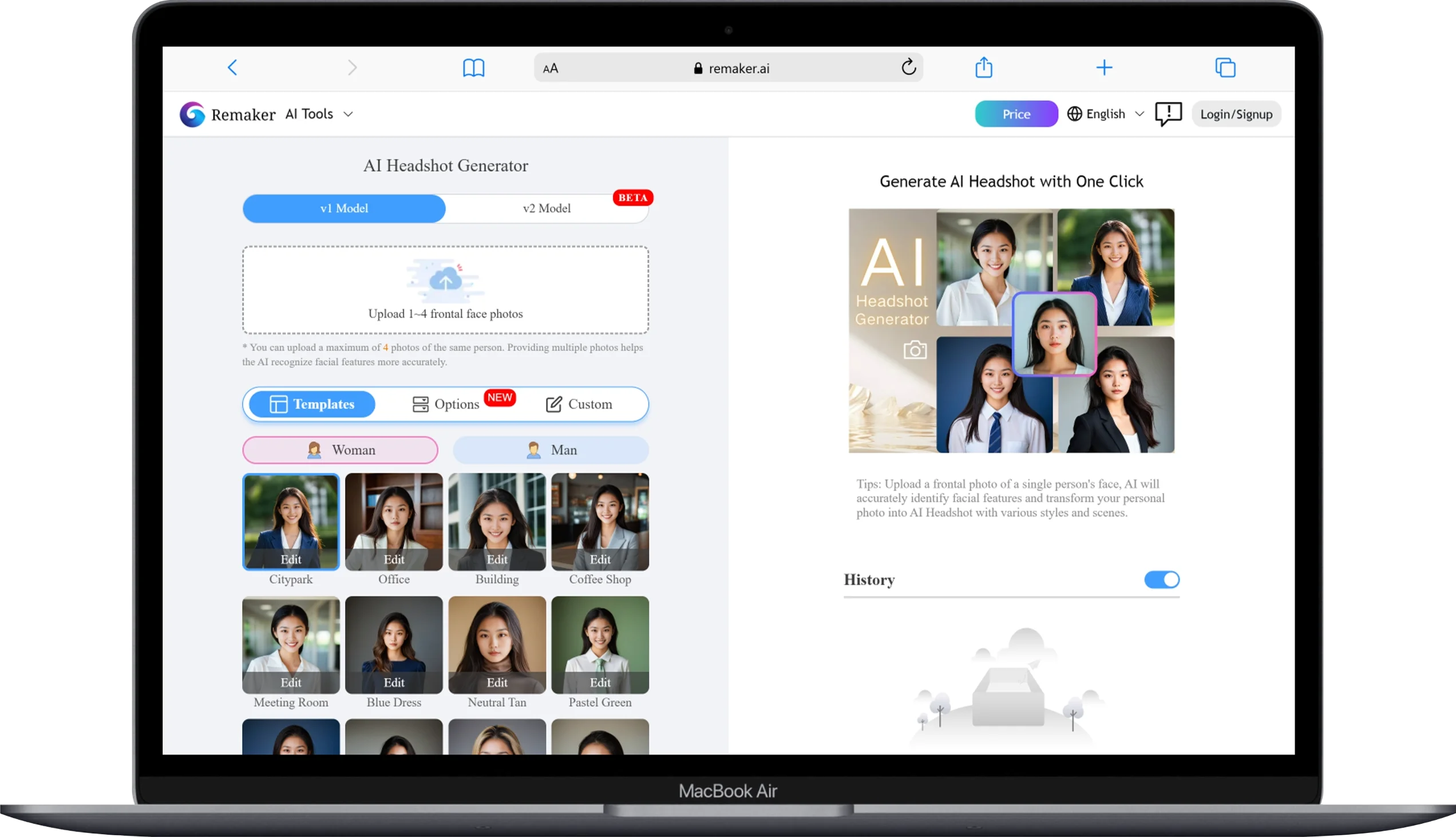
The AI Headshot Generator creates professional-quality headshot photos from casual selfies. You upload a regular photo of yourself. The AI transforms it into something that looks like a studio portrait with proper lighting, background, and composition.
This is perfect if you need a LinkedIn profile picture, a corporate bio photo, or a professional headshot without booking a photographer. The output quality varies depending on your input photo. Clear, well-lit selfies produce the best results. Dark or heavily filtered photos give weaker output.
3. Background Remover

The Background Remover strips backgrounds from up to 50 images at once with no watermark and no signup required. This is one of Remaker AI’s strongest tools. I tested it on product photos, portraits, and complex images with hair detail.
The edge detection is clean on most images. Hair edges, which typically trip up AI background removers, came through reasonably well. Output formats include PNG and WebP with transparent backgrounds. For ecommerce sellers who photograph dozens of products weekly, this batch capability alone could justify using the platform.
4. AI Portrait Generator
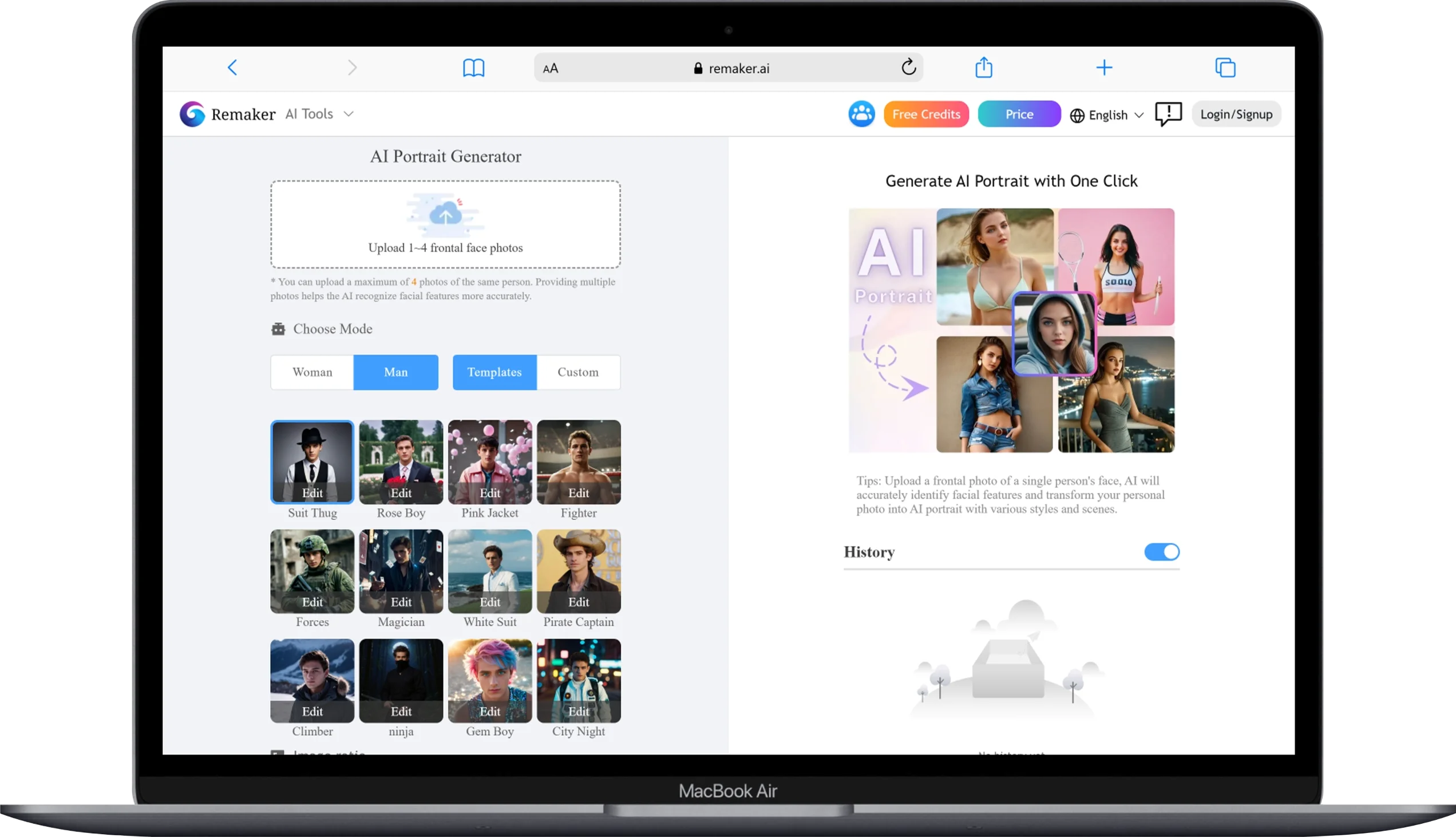
The AI Portrait Generator transforms your regular photos into stylized artistic portraits using various AI art styles. You upload a photo. You pick a style. The AI generates a new version of you in that visual style.
The results range from impressive to hit-or-miss depending on the style you choose. Realistic styles perform better than heavily abstract ones. This tool works well for social media profile pictures, creative projects, and personalized gifts.
5. Photo to Anime Converts Real Photos Into Anime Characters
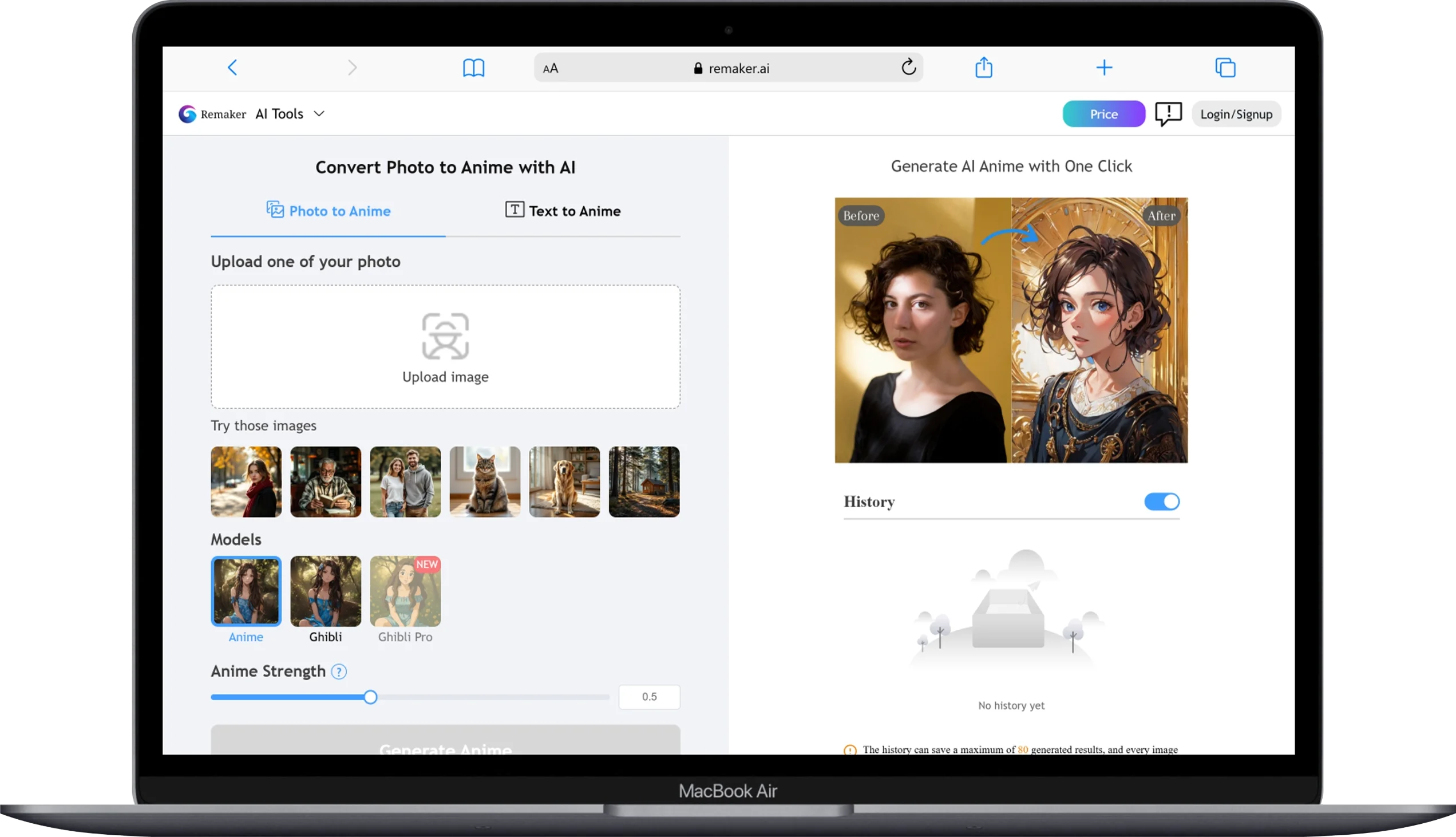
Photo to Anime turns your real photographs into anime-style illustrations. You upload a selfie or group photo. The AI redraws it in anime art style while keeping your facial features recognizable.
I tried it with several photos. The character resemblance was solid on clear, front-facing images. Side angles and group shots produced less consistent results. If you enjoy anime aesthetics or want a fun profile picture, this is an enjoyable tool to experiment with.
6. AI Passport Maker Creates Compliant ID Photos
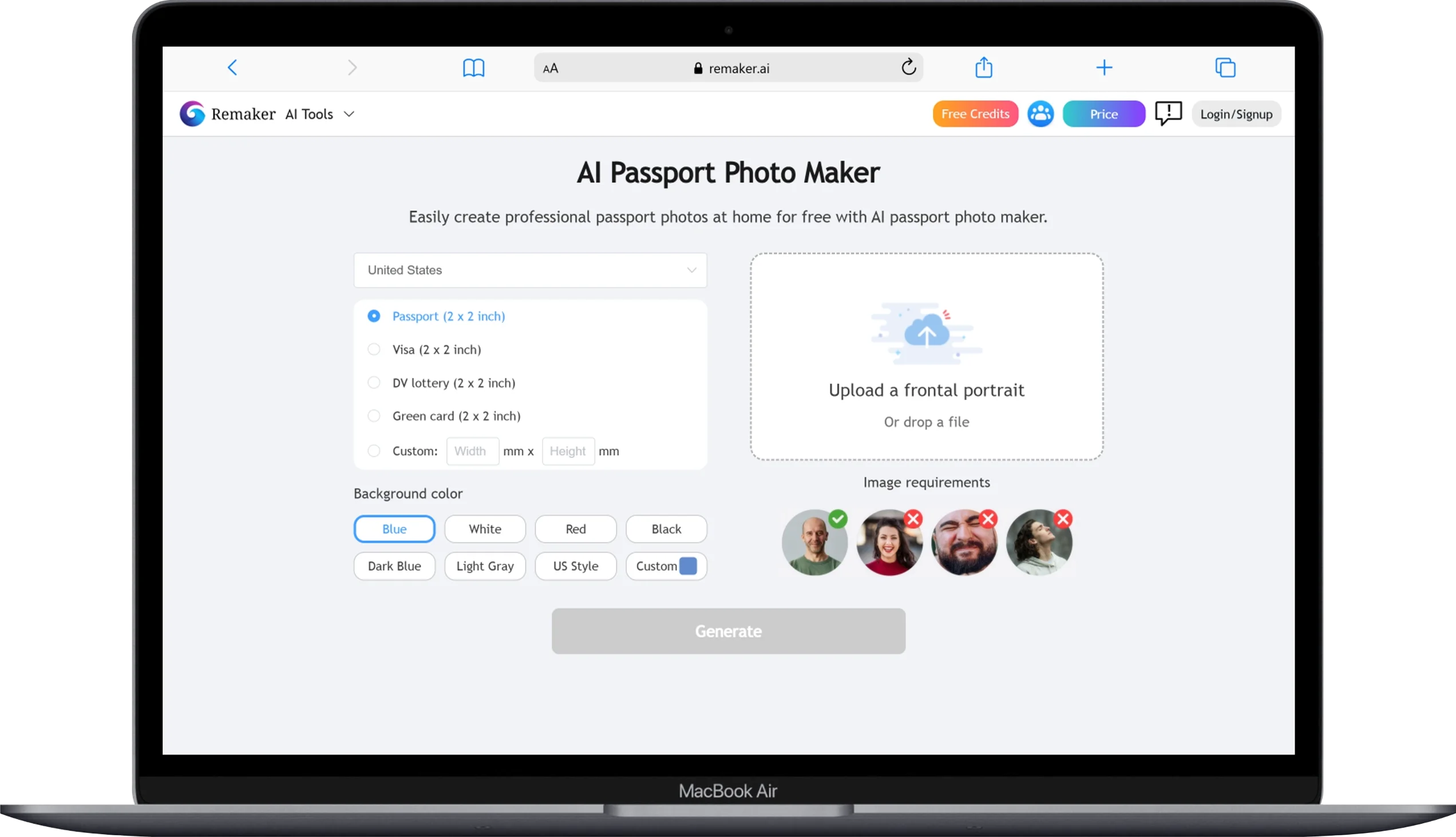
The AI Passport Maker generates passport and ID photos that meet official size and background requirements for multiple countries. You upload a regular photo. The AI crops it, adjusts the background to white, and formats it to passport dimensions.
This tool saves you a trip to the photo studio and roughly $10-15 per set of passport photos. I compared the output against official passport photo guidelines. The sizing and background were accurate. Just make sure your original photo has good lighting and a neutral expression.
7. AI Baby Generator Is Pure Entertainment
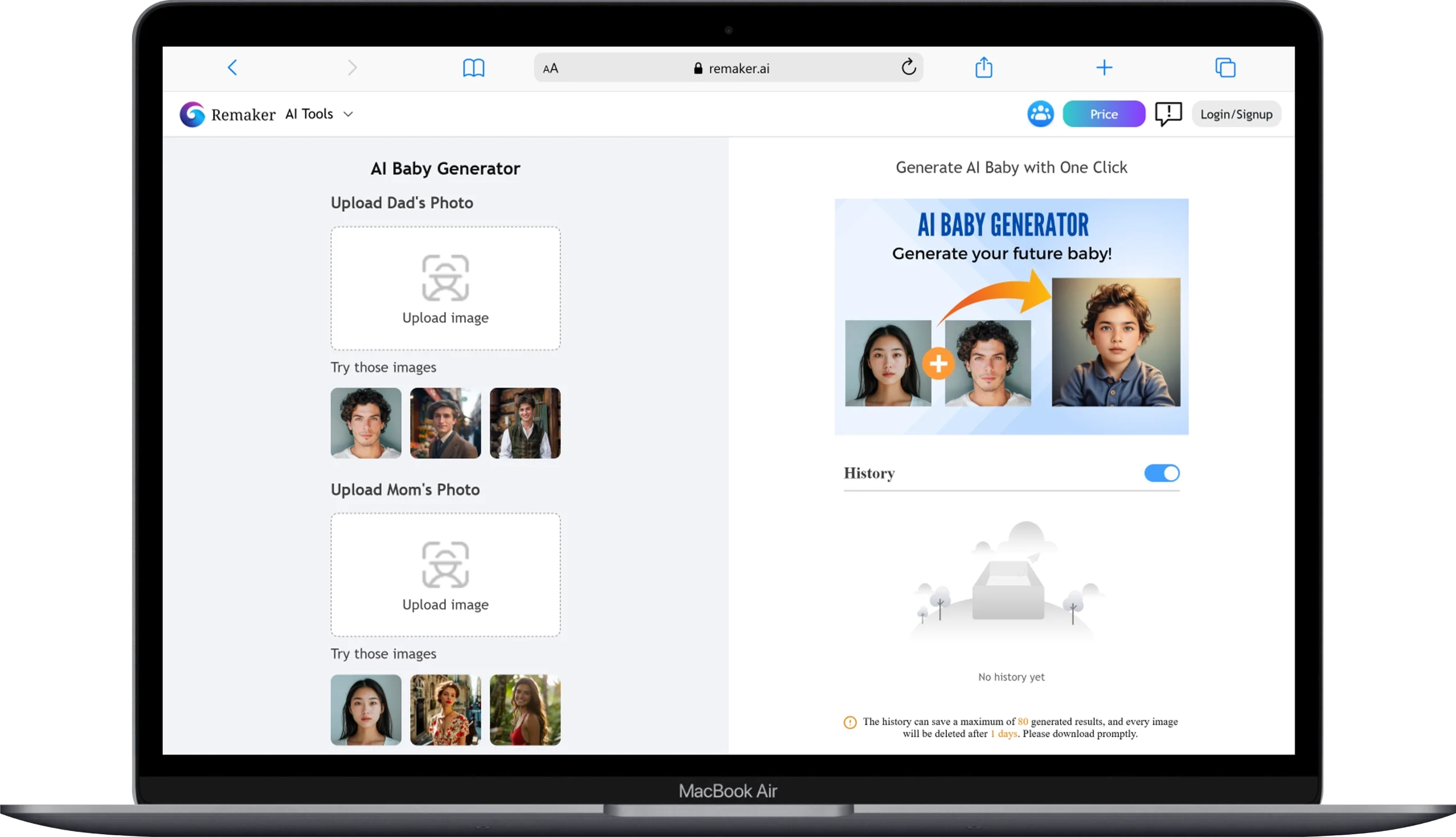
The AI Baby Generator predicts what a baby might look like based on two parent photos. This is entirely for entertainment. Upload two photos. The AI blends facial features and generates a baby face prediction.
Let me be straightforward. This is a novelty tool. The results are fun to share with friends and family. Do not expect scientific accuracy. It generates a cute image based on feature blending. Nothing more. Nothing less.
8. AI Sticker Generator and Meme Maker

The AI Sticker Generator creates custom stickers from your photos, and the Meme Maker adds text overlays to images in classic meme format. Both tools are simple, fast, and free.
These are lightweight features. They will not replace dedicated meme or sticker platforms. But for quick social media content, they get the job done without switching to another app. The Meme Maker includes popular templates. The Sticker Generator cuts out subjects and adds sticker-style outlines automatically.
9. AI Image Generator Creates Visuals From Text Prompts

The AI Image Generator produces images from written text descriptions using multiple AI models. You type a prompt. You pick a model. The AI generates your image.
Model options vary in quality and credit cost. Higher-quality models like Seedream 4 produce sharper, more detailed results but consume more credits. Budget models like Flux Kontext Dev cost less but deliver slightly lower fidelity.
For basic social media graphics, blog illustrations, and concept art, the output is solid. It does not match the quality of standalone tools like Midjourney or DALL-E 3. But for a feature embedded inside a multi-tool platform, it performs respectably.
10. AI Avatar Generator

The AI Avatar Generator creates stylized digital avatars from your uploaded photos. You get multiple avatar styles to choose from, each producing a different artistic interpretation of your face.
This works well for gaming profiles, social media accounts, and online communities where you prefer a digital representation over a real photo. Style variety is decent. Some styles look polished. Others feel generic.
11. AI Tattoo Generator Lets You Preview Ink Before Committing

The AI Tattoo Generator creates tattoo designs based on your text description and can overlay them onto body photos. Describe the tattoo you want. The AI generates a design. You can preview it on your skin before visiting a tattoo artist.
This is a genuinely practical use case. Tattoos are permanent. Seeing a realistic preview on your actual body helps you make a better decision. The design quality depends on your prompt specificity. Detailed prompts produce better designs.
12. AI Object Remover and Magic Eraser Clean Up Your Photos
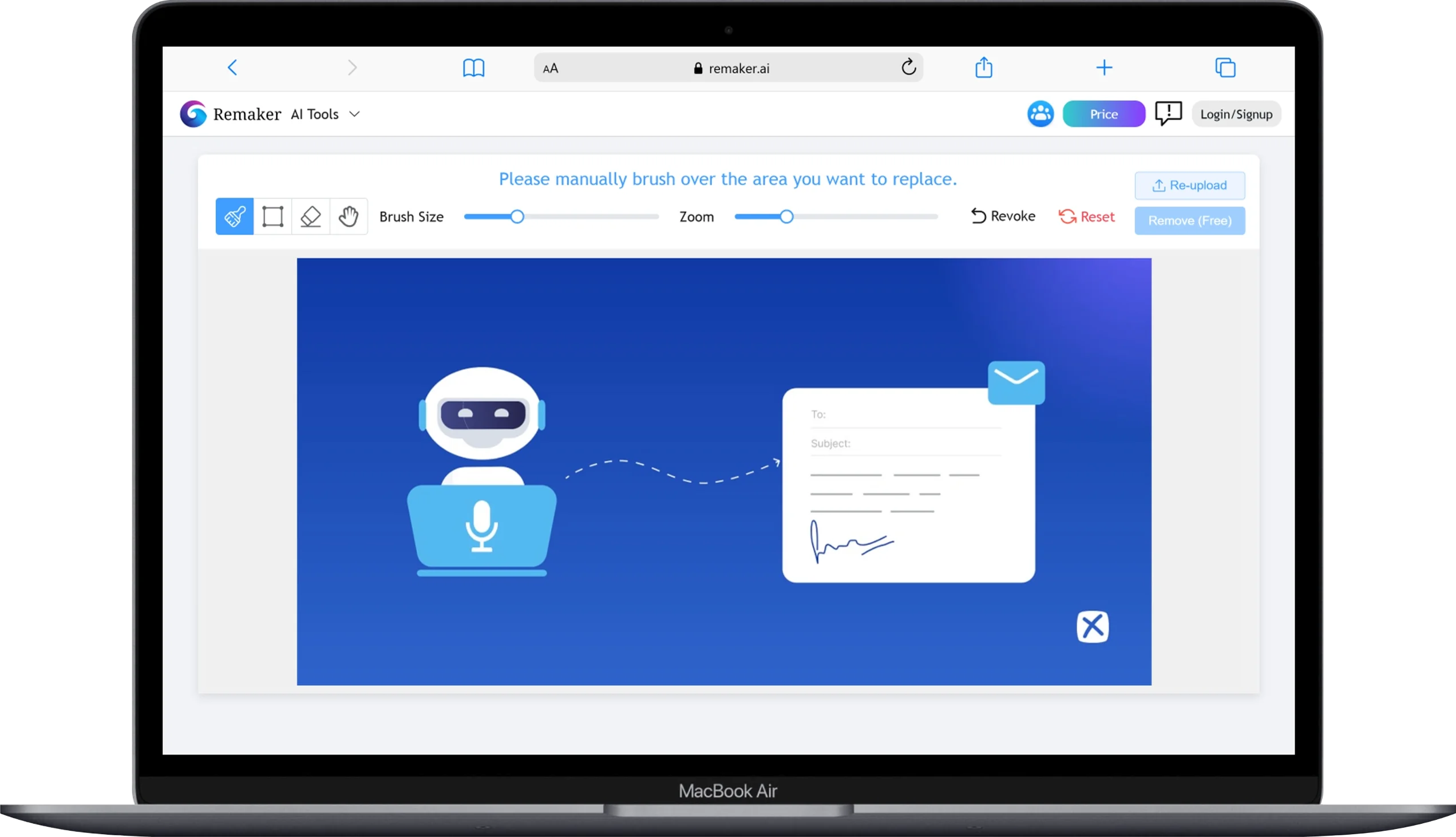
The AI Object Remover and Magic Eraser let you brush over unwanted objects, people, or blemishes in your photos, and AI fills in the area naturally. These two tools overlap in function but approach the task differently.
The Object Remover works through automatic detection. The Magic Eraser gives you a brush tool for precise manual control. Both fill in removed areas with AI-generated background that blends with the surrounding image.
I tested both on tourist photos with strangers in the background. The Magic Eraser handled it cleanly on simple backgrounds. Complex scenes with detailed textures behind the removed object showed some blurring artifacts. For quick social media cleanup, both tools perform well.
13. Image Uncrop Expands Your Photo Beyond Its Original Borders
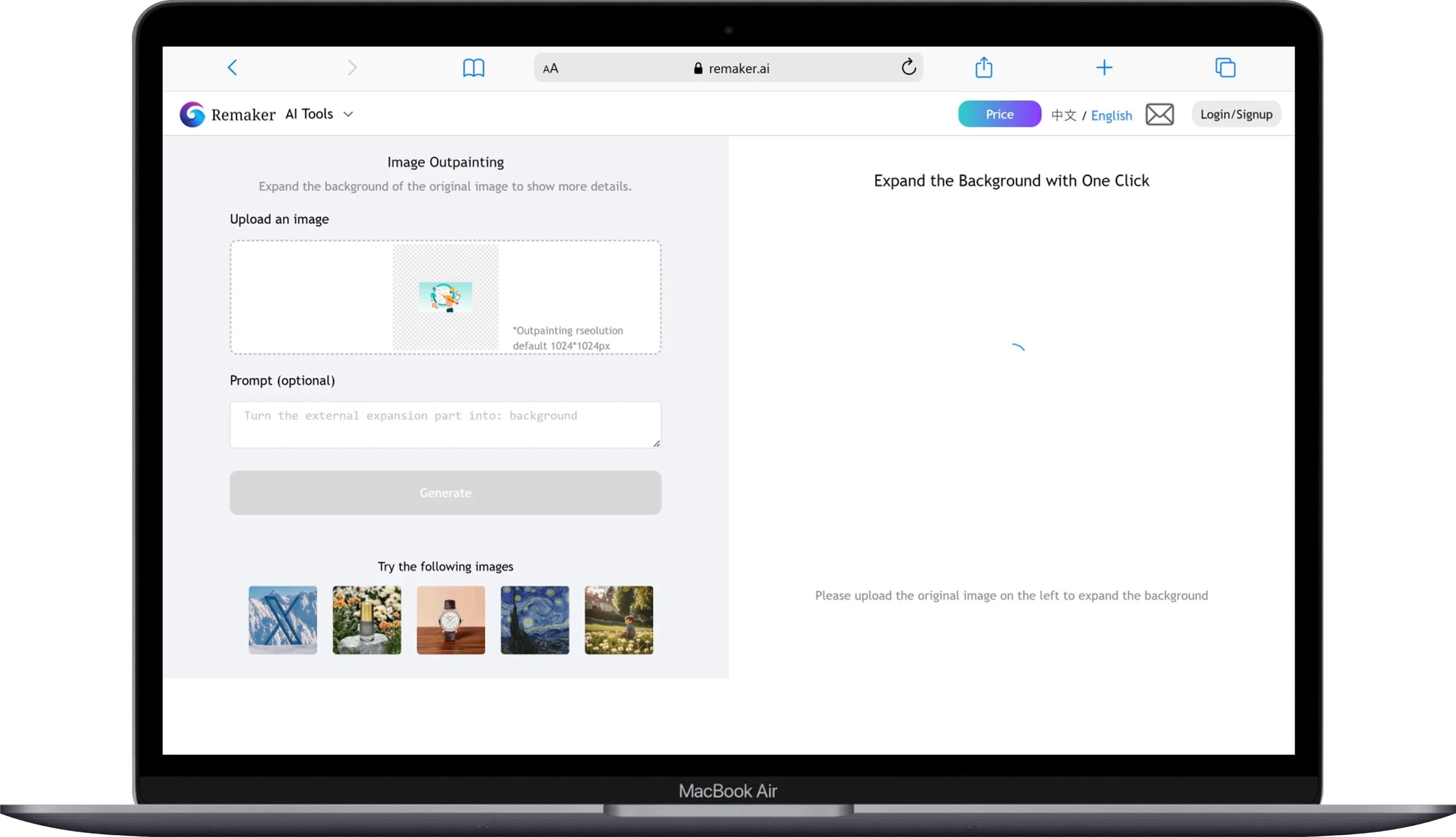
Image Uncrop (also called outpainting) extends your photo canvas by generating new content beyond the original edges. You upload a cropped photo. The AI imagines what exists outside the frame and fills it in.
This is useful when you have a great photo that is cropped too tight. The AI extends the sky, floor, walls, or landscape around your subject. Results depend heavily on the image content. Simple backgrounds extend cleanly. Complex, detailed scenes produce mixed quality.
14. AI Logo Generator Creates Brand Logos From Descriptions

The AI Logo Generator designs logo concepts based on your business name and description. You type your brand name, pick a style, and receive multiple logo options.
For startups and small businesses brainstorming their visual identity, this is a fast starting point. The designs are basic but clean. You will likely want a professional designer to refine the AI output. But as a brainstorming and concept tool, it speeds up the early stages of brand development.
15. AI Photo Editor Is the Most Powerful Tool on the Platform
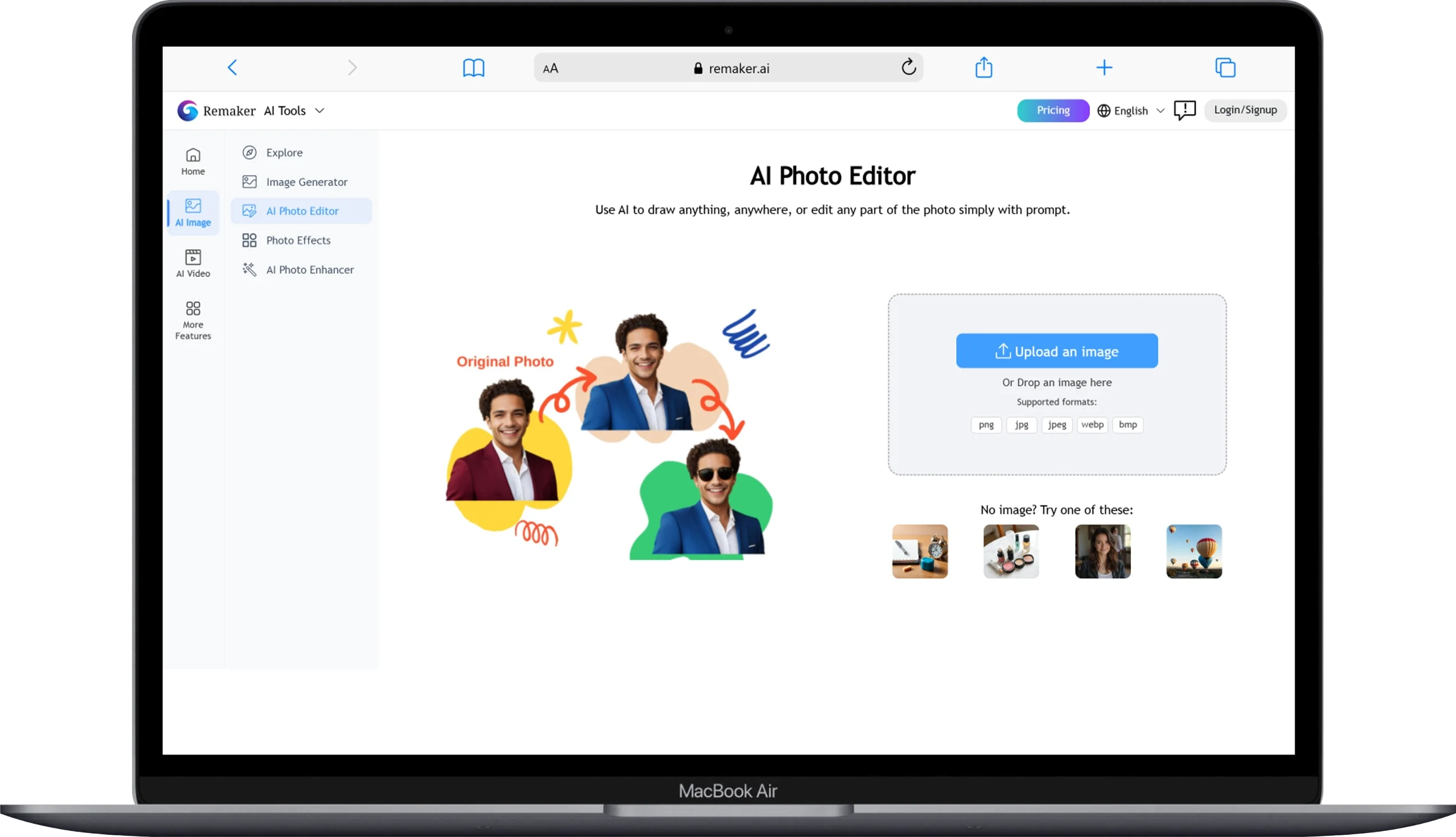
The AI Photo Editor combines prompt-based editing and object transformation into one tool, powered by multiple AI models including Seedream 4, Nano Banana, and Flux Kontext. This is the crown jewel of Remaker AI’s photo tools.
You edit in two modes. Prompt Edit Mode lets you type instructions like “make the sky a sunset” or “add sunglasses to the person.” Transform Object Mode gives you a brush to paint over areas you want AI to repaint or remove.
Here is the credit breakdown per model:
| Model | Description | Credits Per Edit |
|---|---|---|
| ByteDance Seedream 4 | High-res 4K editing with sharp detail | 6 credits |
| Google Nano Banana | Strong facial consistency and realism | 8 credits |
| Flux Kontext Dev | Budget-friendly quality enhancement | 2 credits |
The Nano Banana model delivered the best facial editing results in my testing. Seedream 4 handled landscape and product photos better. Flux Kontext is your budget pick when credits are tight.
16. AI Flux Kontext and Nano Banana AI Are Integrated Generation Models
Remaker AI integrates both Flux Kontext and Google’s Nano Banana AI as generation models within the platform. You can access Nano Banana directly through Remaker to create consistent, realistic images in seconds. Flux Kontext handles quick edits and enhancements at a lower credit cost.
Having these models built into one platform saves you from juggling between Google’s Gemini app and other standalone tools. Convenience is the main value here.
Remaker AI Video Tools Review: Every Feature Tested
Remaker AI offers 8 video-focused tools. Video features consume more credits than photo tools, so budget accordingly.
17. AI Video Enhancer Upscales Old Footage to 4K

The AI Video Enhancer upscales video resolution to 4K while improving sharpness, motion stability, and color accuracy. Upload an old or low-quality video. The AI enhances it frame by frame. Enhanced videos stay available for re-download for 30 days on their cloud servers.
I uploaded a grainy phone video. The output was noticeably sharper with better color balance. It does not turn phone footage into Hollywood quality. But it makes older clips look significantly more presentable for social media or personal archives.
18. AI Video Generator Creates Clips From Text and Images

The AI Video Generator produces short animated clips (approximately 5 seconds) from text prompts or still images. This is the most credit-intensive feature on the platform.
| Model | Credits Per Clip (5 sec) | Resolution |
|---|---|---|
| Remaker 2.0-Turbo | 11 credits | 480p, 720p |
| Remaker 2.0-Standard | 18 credits | 480p, 720p |
| Remaker 1.0-Turbo | 18 credits | 480p, 720p |
| Remaker 1.0-Pro | 30 credits | 480p, 720p |
| Remaker 1.0-Animation | 30 credits | 480p, 720p |
The Turbo 2.0 model offers the best balance between cost and quality. Pro and Animation models produce smoother results but burn through credits fast. For quick social media clips, product teasers, or concept videos, the output is decent. For professional-grade video, you will still need dedicated tools like Runway or Pika.
19. Online Video Editor Handles Basic Cuts and Trims
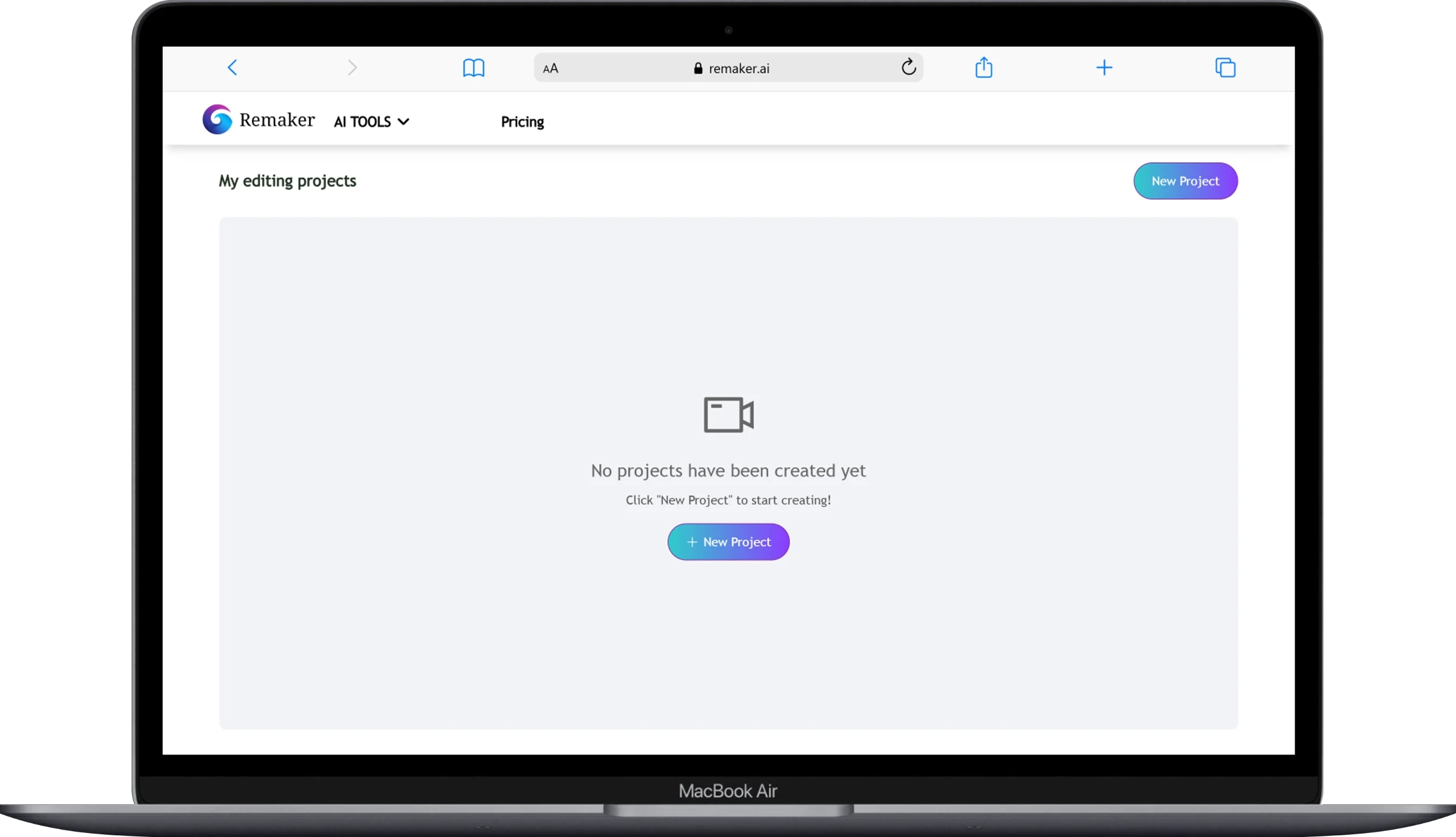
The Online Video Editor provides simple timeline-based editing directly in your browser. You can trim clips, merge segments, and make basic adjustments without downloading software.
This is not a Premiere Pro replacement. It handles simple edits only. For cutting an intro, trimming dead space, or stitching two clips together, it works fine. Anything more complex will frustrate you.
20. Image to Video Brings Still Photos to Life
Image to Video animates your still photos into short video clips using AI motion generation. Upload a landscape, portrait, or product photo. The AI adds subtle motion like clouds drifting, hair blowing, or camera panning.
The effect is similar to Apple’s Live Photos or Plotagraph tools. Results look best on images with natural movement potential, like outdoor scenes, water, or flowing fabric. Static indoor shots produce less convincing motion.
21. AI Lip Sync Generator Matches Mouth Movement to Audio
The AI Lip Sync Generator syncs a person’s lip movements in video to match any uploaded audio track. You upload a video of someone talking. You upload a different audio file. The AI adjusts the mouth movements to match the new audio.
This is useful for dubbing content into different languages, creating voiceover presentations, or producing content where the original audio needs replacing. Sync accuracy is good on clear, front-facing footage. Side angles and fast speech produce visible artifacts.
22. AI Talking Photo Animates Still Portraits With Speech
AI Talking Photo takes a still portrait and animates it to appear as if the person is speaking, synced to uploaded audio or text-to-speech. Upload a headshot. Type your script or upload audio. The portrait “talks.”
I tested it with a professional headshot and typed script. The mouth movements were convincing at normal viewing distance. Close inspection reveals some smoothing around the jaw and lips. For social media content, presentations, and creative projects, the output is usable and fun.
23. AI Voice Clone Replicates Your Voice From a Short Sample
AI Voice Clone creates a digital copy of your voice from a short audio recording, which can then be used for text-to-speech generation. You record a sample. The AI learns your tone, pitch, and speech patterns. Then it reads any text you provide in your cloned voice.
The quality depends on your recording quality. Clean, quiet recordings produce better clones. Background noise degrades accuracy. This tool pairs well with the Talking Photo and Lip Sync features to create complete talking-head content from a single photo and text script.
24. Video Background Remover Strips Backgrounds From Video Clips
Video Background Remover isolates the subject in your video and removes the background, similar to a green screen effect. This works on uploaded video files. The AI tracks the subject frame by frame and separates them from the backdrop.
For content creators who film without a green screen, this is a helpful tool. Edge accuracy is decent on high-contrast subjects. Loose clothing, flyaway hair, and complex movements cause occasional edge bleed.
Remaker AI Pricing: What Does It Cost?
Remaker AI uses a one-time credit purchase model with no monthly subscriptions, and credits never expire. You buy credits once. You spend them as you use tools. No auto-renewals. No surprise charges.
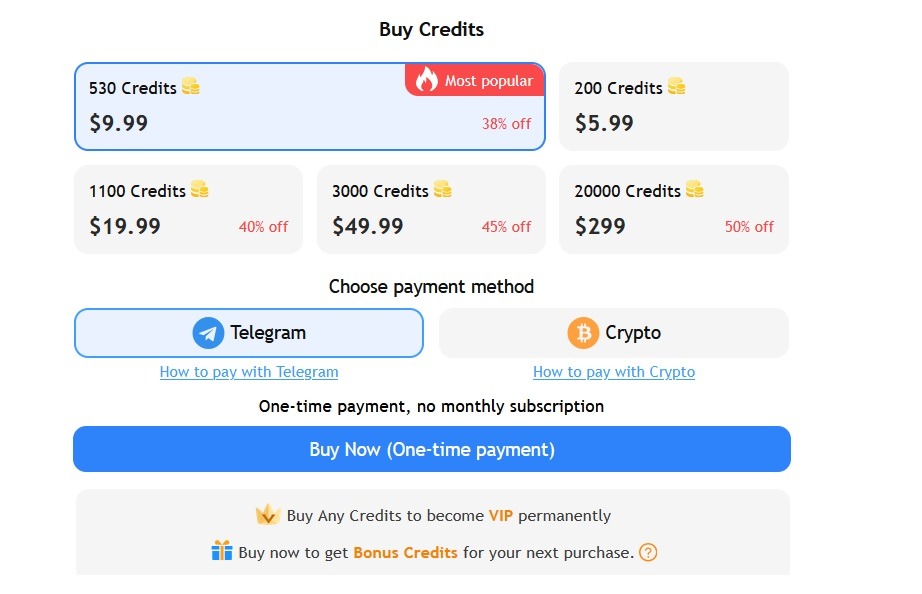
Credit Packages (from the “Buy Credits” section in your image)
| Credit Package | Price (USD) |
|---|---|
| 200 Credits | $5.99 |
| 530 Credits | $9.99 |
| 1100 Credits | $19.99 |
| 3000 Credits | $49.99 |
| 20000 Credits | $299 |
(Discount badges shown in the image for select packs: 530 “Most popular”, 1100 40% off, 3000 45% off, 20000 50% off.)
Payment methods (from the image)
Telegram and Crypto.
Bonus credits (as referenced by your original article text/UI)
You can also earn Bonus Credits on eligible purchases (shown in the page text as “Buy now to get Bonus Credits for your next purchase”).
What Do Individual Tools Cost in Credits?
Credit costs vary widely across tools. Here are some common usage estimates:
| Tool | Approximate Credits Per Use |
|---|---|
| Background Removal | 1-2 credits per image |
| Image Upscale | 2-4 credits per image |
| AI Photo Edit (Flux Kontext) | 2 credits |
| AI Photo Edit (Seedream 4) | 6 credits |
| AI Photo Edit (Nano Banana) | 8 credits |
| Video Enhancement | 10-20 credits per clip |
| Video Generation (Turbo) | 11 credits per 5-second clip |
| Video Generation (Pro) | 30 credits per 5-second clip |
Photo tools are affordable. Video tools drain credits fast. Plan your usage accordingly.
Remaker AI Pros and Cons: An Honest Summary
Pros:
- 30+ AI tools in one platform eliminates the need to juggle multiple apps and subscriptions
- No subscription model means you only pay for what you use, when you use it
- Credits never expire so there is no pressure to rush through your balance
- No download required because everything runs in your browser on any device
- Batch processing on background removal and image upscaling saves time for high-volume work
- Multiple AI models let you choose between quality and credit cost
- Free tools available without signup, including background removal and basic upscaling
- Watermark-free downloads on most features, even at lower credit tiers
Cons:
- Payment limited to Crypto and Telegram only (no card payments shown)
- Trustpilot rating of 2.5 out of 5 stars from a small review sample, with complaints about downtime and support
- Customer support is weak with limited response channels and slow resolution times
- Video generation quality does not match dedicated platforms like Runway, Pika, or Kling
- Site downtime reported by multiple users, sometimes lasting hours
- Mobile app pricing differs from web pricing, creating confusion about actual costs
- Terms of Service contain references to auto-renewal and subscriptions that contradict the “no subscription” marketing claim
- Video tools are expensive in credits and produce only short 5-second clips at 480p or 720p
Who Should Use Remaker AI?
Remaker AI is best for social media creators, ecommerce sellers, casual content makers, and marketers who need quick visual edits without learning complex software. Here is a breakdown of who benefits most from this platform:
- Social media creators who need face swaps, meme edits, stickers, and quick video clips for TikTok, Reels, and Shorts
- E-commerce sellers who process dozens of product photos weekly and need batch background removal, upscaling, and editing
- Small business owners who need logos, headshots, and marketing visuals without hiring a designer
- Casual users who want to experiment with AI photo effects, anime conversions, tattoo previews, and baby predictions for fun
- Content marketers who produce short video clips, talking-head content, and branded visuals for ads and blog posts
Who Should Look Elsewhere?
- Professional video producers who need high-resolution, long-form video generation should use Runway, Pika, or Kling instead
- Agencies handling sensitive client data may find the privacy policies too vague and customer support too limited
- Users who need card payments cannot currently purchase credits through traditional payment methods
Remaker AI vs Competitors: A Quick Comparison
| Feature | Remaker AI | Canva | Runway | Pika |
|---|---|---|---|---|
| Photo Editing Tools | 18+ tools | Extensive | Limited | Limited |
| Video Generation | Short clips (5 sec) | Basic | Professional quality | Professional quality |
| Face Swap | Yes (batch + video) | No | No | No |
| Background Removal | Yes (batch, 50 images) | Yes (single image) | No | No |
| Pricing Model | One-time credits | Monthly subscription | Monthly subscription | Monthly subscription |
| Payment Methods | Crypto and Telegram only | All major cards | All major cards | All major cards |
| Max Video Resolution | 720p | 1080p | 4K | 1080p |
| Customer Support | Limited | Strong | Moderate | Moderate |
Remaker AI wins on tool variety, face swap capability, and flexible pricing. It loses to competitors on video quality, payment options, and customer support reliability.
Frequently Asked Questions About Remaker AI
Is Remaker AI Free to Use?
Partially. New users receive free credits upon signup. Several tools, including Background Remover and basic Image Upscaling, work without creating an account. Watermark-free downloads are available on the free tier. Advanced features, video generation, and higher-quality AI models require purchased credits starting at $5.99 for 200 credits.
Is Remaker AI Safe and Legit?
Yes, with some caution. The platform processes payments through secure channels and states it does not store banking information. All uploaded content for face swaps is reportedly deleted within 48 hours. ScamAdviser rates it as “likely legit.” G2 user reviews are generally positive for ease of use and quality. Trustpilot shows a lower rating of 2.5 out of 5 based on 10 reviews, with complaints about downtime and customer support. Start with a small credit pack to test before committing larger amounts.
Do Remaker AI Credits Expire?
No. All purchased credits are valid permanently. You can use them at any time without deadline pressure. This is one of the platform’s strongest selling points compared to subscription-based competitors that reset monthly.
Can You Use Remaker AI on Your Phone?
Yes. Remaker AI works on iOS and Android through the mobile browser or dedicated app. You log in with the same account across all devices. Be aware that in-app credit pricing on mobile may differ from web pricing. Always compare before purchasing.
Does Remaker AI Add Watermarks?
No. Downloads from most tools are watermark-free, even on the free tier. This applies to face swaps, background removal, upscaling, and image generation. Some preview modes may show lower quality, but exported files come clean.
What Payment Methods Does Remaker AI Accept?
Telegram and Crypto payments only (per the pricing UI). Card payments are not supported in the pricing page UI, which may be a limitation for users who prefer traditional payment methods.
Conclusion
Remaker AI packs a genuinely impressive number of AI tools into one browser-based platform. The 18+ photo tools and 8 video tools cover everything from background removal and portrait generation to face swapping, voice cloning, and video enhancement. The credit-based pricing with no subscriptions and no expiration is a refreshing model in a market dominated by monthly fees.
The platform’s strongest tools are the batch Background Remover, AI Photo Editor with Nano Banana and Seedream 4 models, AI Image Upscaler, and face swap capabilities. These features deliver solid quality for the price and solve real problems for creators and ecommerce sellers.
The weaknesses are real too. Crypto/Telegram-only payments lock out a large portion of potential users. Customer support needs significant improvement. Video tools are expensive in credits and limited in output quality compared to dedicated platforms. Site reliability has been an issue for some users.
My recommendation? Start with the free credits you get at signup. Test the Background Remover, Image Upscaler, and AI Photo Editor first. These are Remaker AI’s best features. If they meet your needs, purchase a small $5.99 credit pack and explore further. If you rely heavily on video generation or need traditional payment options, look at alternatives like Canva, Runway, or Pika instead.
Remaker AI is a solid tool for the right user. It is not perfect. But for quick, affordable, subscription-free AI photo editing with impressive batch capabilities, it earns a place on your shortlist.
You May Also Like
 AI Tool Reviews
How to Use ChatGPT for Beginners: The Complete Step-by-Step Guide (2026)
 AI Tool Reviews
GPTZero vs ZeroGPT: Which AI Detector Actually Holds Up in the Real World?
 AI Tool Reviews
Kimi vs ChatGPT: Is Kimi AI Actually Better Than ChatGPT?
 AI Models
Kimi K2.6 vs Claude Opus 4.7: Which AI Comes Out on Top?
 ChatGPT
Grok vs ChatGPT: Is Grok Actually Better Than ChatGPT?
 AI Tool Reviews